12 signs your WordPress site has been hacked
Twelve signs of a hacked WordPress site, from unknown admin users to cloaked redirects, how to check each one, and what to do in the first hour.
Also in: Deutsch Français Español Italiano Polski Português Türkçe
The clearest signs that your WordPress site has been hacked are admin accounts nobody created, PHP files where only images belong, and spam pages or redirects that you never see on your own screen. Most of these signs are quiet on purpose: attackers want the site to keep running, so they hide from logged-in administrators and show their payload only to search engines or selected visitors.
Below are 12 signs, grouped by where you notice them, each with a concrete way to check it. Several checks use WP-CLI, the WordPress command line. Your host's file manager and database tool work too, just more slowly.
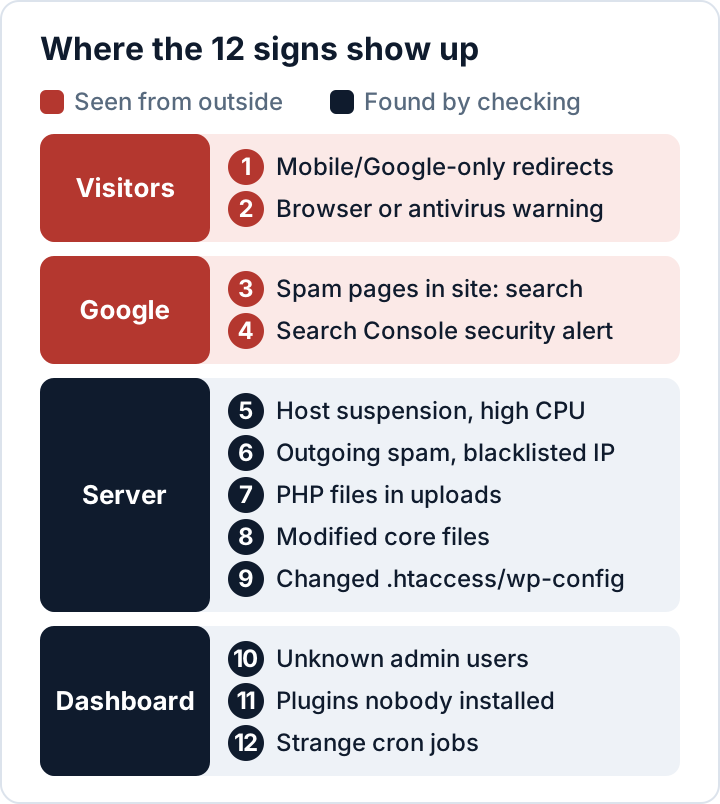
WordPress hacked? Signs your visitors notice
1. Redirects only on mobile or from Google
Many infections redirect only some visitors: people on phones, or people who arrive from a Google search. Google's spam policies describe both tricks: cloaking (different content for search engines and users) and redirecting mobile users to a spam domain. You type your address on a desktop, see a normal site and miss it.
How to check: on your phone, using mobile data and logged out, search for your site and tap the result. From a terminal, compare a plain request with a "mobile visitor from Google":
curl -s -o /dev/null -w '%{http_code} %{redirect_url}\n' https://example.com/
curl -s -o /dev/null -w '%{http_code} %{redirect_url}\n' \
  -A 'Mozilla/5.0 (iPhone; CPU iPhone OS 17_0 like Mac OS X)' \
  -e 'https://www.google.com/' https://example.com/
A 301 or 302 to a foreign domain in the second result only is a strong warning sign. JavaScript redirects do not show up this way, so also look for unfamiliar scripts in the page source.
2. Browser or antivirus warnings
A full-screen browser warning such as "Deceptive site ahead", or customers telling you their antivirus blocked your site, usually means a blocklist has already picked up malware or phishing on your domain. How to check: look up your domain in Google's Safe Browsing site status and ask for a screenshot of the exact warning.
Signs in Google search results
3. Spam pages in site: results
Injected pages for casinos, pharmacies or replica goods often show up in Google before you notice them anywhere else. How to check: search for site:example.com and scan for foreign-language titles or topics you never published. Adding words such as casino, viagra or loan narrows it down.
4. Search Console security issues
If your site is verified in Google Search Console, open Security & Manual Actions → Security issues. Google lists problems it has detected there, such as hacked content or malware. How to check: make sure the property is verified and that its messages reach someone who reads them. An empty report is good news, not proof.
Signs on the server and hosting account
5. Hosting suspension or high CPU
Hosts suspend accounts that send spam, serve phishing pages or overload the server. A CPU spike without more visitors can mean a crypto miner or spam script is running on your account. How to check: read the host's message in full (it often names files) and look at the resource graphs in your control panel. With SSH access, ps aux --sort=-%cpu | head shows the busiest processes.
6. Outgoing spam and mail blacklisting
If your own emails start bouncing, or you receive bounces for messages you never sent, a script may be sending spam through your server. How to check: ask your host whether outgoing mail volume has changed, and look up your server's IP address in a public blocklist checker.
7. PHP files in wp-content/uploads
The uploads folder should hold images and documents, not code. A PHP file there is often a web shell, a backdoor that lets the attacker run commands. How to check:
find wp-content/uploads -type f \( -iname '*.php' -o -iname '*.phtml' -o -iname '*.phar' \)Some plugins place an empty index.php in their folders to prevent directory listings. Open every hit and look at what it actually contains.
8. Modified core files
Attackers like to hide code in WordPress core files because nobody reads them. How to check: wp core verify-checksums compares your core files with the official WordPress.org checksums and warns about every file that does not match (command reference). wp plugin verify-checksums --all does the same for plugins, but only for those hosted on WordPress.org.
9. Unexpected changes in .htaccess or wp-config.php
A few added lines in .htaccess can redirect visitors based on their referrer or browser. A line in wp-config.php, or an auto_prepend_file setting in .user.ini, can load malware before WordPress even starts. How to check: compare both files with your last known-good backup, then search for typical obfuscation and prepend tricks:
grep -rnE --include='*.php' 'eval\(|base64_decode\(|gzinflate\(|str_rot13\(' . | head -50
grep -rn 'auto_prepend_file' --include='.htaccess' --include='.user.ini' --include='php.ini' .
Legitimate plugins use some of these functions too, so treat hits as leads, not verdicts.
Signs in the WordPress dashboard
10. Unknown admin users
A new administrator account is the classic way to keep access, and some malware hides its account from the Users screen. How to check:
wp user list --role=administrator --fields=ID,user_login,user_email,user_registered --skip-plugins --skip-themesThe two --skip flags stop regular plugin and theme code, including malware hiding there, from filtering the list. Must-use plugins and wp-config.php still load, so check those too (signs 9 and 11). If WP-CLI shows more administrators than the Users screen, something is hiding an account. Also check each admin profile for Application Passwords nobody on your team created.
11. Plugins nobody installed
Look for plugins with generic names, no author or no description that nobody on your team remembers installing. Must-use plugins in wp-content/mu-plugins load automatically and are easy to overlook. How to check: wp plugin list shows regular plugins together with must-use plugins and drop-ins such as object-cache.php; wp plugin list --status=must-use,dropin shows only the last two groups.
12. Strange cron jobs
Malware often schedules itself so it can come back after you delete it. How to check:
wp cron event list --fields=hook,next_run_relative,recurrenceLook up every hook you cannot link to a plugin you use. Server-level cron jobs matter too: crontab -l or the cron section of your hosting panel shows them.
What to do in the first hour
If one or more of these signs point to a hack, the next hour decides how much you can still find out. Work calmly, in this order:
- Do not panic-delete. Deleting the suspicious file or the unknown admin destroys evidence and rarely removes the whole infection, because attackers often leave more than one way back in.
- Preserve evidence. Take a full snapshot or backup of files and database in the hacked state, and download the web server access and error logs, which many hosts keep only for a limited time. Store the copy offline and label it as infected.
- Change passwords from a clean device. Start with the hosting account, then SFTP/SSH, the database and every WordPress administrator. If your own computer might be compromised, use a different one, and turn on two-factor authentication for every admin.
- Contact your host. They can see server logs, other sites on the same account and outgoing mail, and can often isolate the site quickly.
- Write down the time. Note when you first became aware of the hack and what you have observed so far.
The last point matters for the GDPR. If the attacker could reach customer data, contact-form entries, user accounts or orders, the hack is usually a personal data breach. Article 33 of the GDPR requires you to notify the supervisory authority without undue delay and, where feasible, within 72 hours of becoming aware, unless the breach is unlikely to result in a risk. Our guide to the GDPR 72-hour breach notification explains how to assess this.
Once the evidence is safe, continue with our step-by-step WordPress malware removal plan: contain the site, find the entry point, clean from known-good sources and rotate every credential.
Security Audit & Compliance, the WordPress plugin from secaudit.eu, checks several of these signs for you, including hidden admin accounts, suspicious cron events, core checksums, file changes against a baseline and hidden SEO spam. It detects and reports; removing the malware is still a job for you or a professional.
FAQ
Can a site be hacked without any visible sign?
Yes. Many infections are built to stay invisible to the owner: they skip logged-in users, target only search engines or run only on the server. That is why the checks above go beyond looking at your homepage.
Is every hack a GDPR data breach?
Not every one, but many are. If personal data was accessed, changed, lost or made unavailable, it is a personal data breach. Document your assessment either way: Article 33(5) requires a record of every breach, including the ones you do not notify.
Should I restore yesterday's backup right away?
Only after you have saved the infected state and know roughly when the attack started. A backup made after the break-in contains the backdoor too, and restoring without closing the entry point lets the attacker straight back in.
This article is general information, not legal advice.
Check your own site
Security Audit & Compliance is the WordPress plugin from secaudit.eu: it scans for malware, hidden spam, changed core files and vulnerable code, and maps its findings to GDPR Art. 32, NIS2 Art. 21 and the OWASP Top 10.
See what the plugin checks