WordPress malware removal: a step-by-step plan
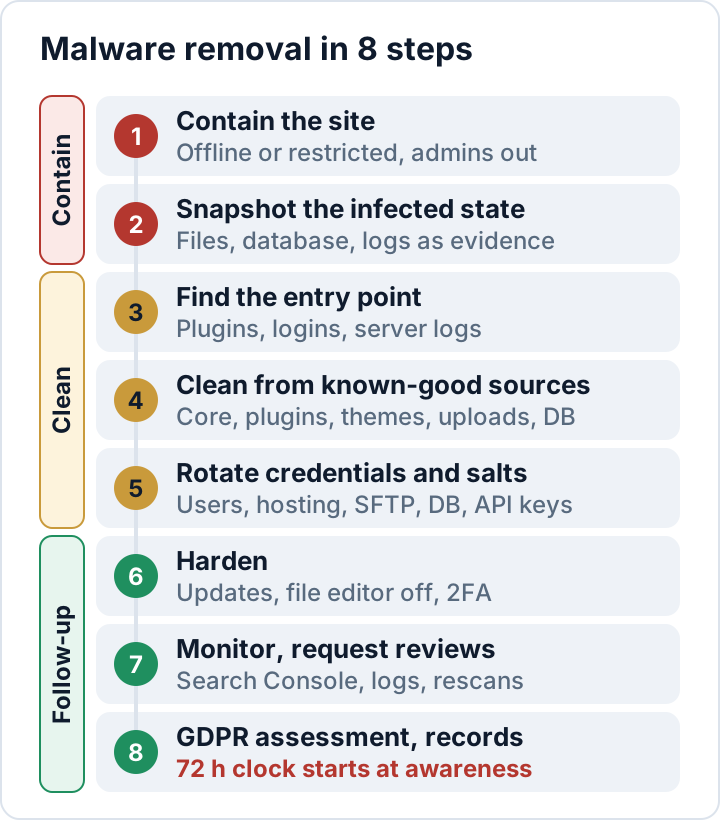
WordPress malware removal in eight steps: contain the site, keep evidence, find the entry point, clean from known-good sources, rotate secrets and harden.
Also in: Deutsch Français Español Italiano Polski Português Türkçe
Reliable WordPress malware removal means replacing everything you can from known-good sources, closing the hole the attacker came through and changing every secret they might have seen. Deleting the one suspicious file you found is not enough, because attackers usually leave more than one way back in.
This plan has eight steps. Work through them in order and keep notes as you go: you will need them for Google, your host and possibly your data protection authority. If you are not yet sure the site is compromised, start with our 12 signs of a hacked WordPress site.
Before WordPress malware removal: clean, restore or get help?
Decide this first, because it changes the rest of the plan.
- Restore a clean backup if you know roughly when the infection started and have a backup from before that date. You still need steps 3, 5 and 6, or the attacker returns through the same hole. Orders, comments or form entries created since the backup are lost unless you export them first.
- Call a professional if the site takes payments or holds sensitive data, the infection came back after an earlier cleanup, several sites on the same server are affected, you need a forensic report for an insurer or authority, or you are not comfortable on the command line. Many hosts offer this too.
- Clean it yourself if you have SSH and WP-CLI access, a list of the plugins and themes you use, and time to do it properly.
Contain: stop the damage, keep the evidence
Step 1: Contain the damage
Take the site offline or restrict access so visitors are not infected. wp maintenance-mode activate shows visitors a maintenance notice, but it only affects requests that load WordPress: a backdoor file called directly still runs. Real containment happens at the server, so ask your host to block public access or limit it to your IP address.
Then lock the admin area. This command logs out every user:
wp user list --field=ID | xargs -n 1 wp user session destroy --allChange your own administrator password from a clean device. Note any unknown accounts, but delete them only after step 2. On an infected site, you can add --skip-plugins --skip-themes to WP-CLI commands so that plugin and theme code does not run; must-use plugins and wp-config.php still load.
Step 2: Snapshot the infected state
Before you change anything, save the hacked site exactly as it is: you need it to find the entry point, to answer an insurer or authority, and as a fallback if cleaning breaks something.
# run in the WordPress root; ~/evidence should be outside the web root
mkdir -p ~/evidence
wp db export ~/evidence/db-infected-$(date +%F).sql
tar -czf ~/evidence/files-infected-$(date +%F).tar.gz .
sha256sum ~/evidence/*
The sha256sum line records checksums, so you can later show the copies are unchanged. Also download the access and error logs; many hosts keep them only for a limited time.
Clean: close the hole and replace what was touched
Step 3: Find the entry point
If you skip this step, you may clean the same site again next week. Typical entry points are vulnerable plugins or themes, stolen or reused passwords, and other infected sites on the same hosting account.
- Vulnerable plugins and themes. Run
wp plugin list --fields=name,status,version,updateandwp theme list, then look up each outdated item in a vulnerability database. Speed matters: the security vendor Patchstack reports that for heavily exploited vulnerabilities in 2025, the weighted median time to mass exploitation was 5 hours (State of WordPress Security in 2026). - Stolen logins. Check when unknown admin accounts were created and look for logins from unfamiliar IP addresses.
- Server logs. Look for POST requests to unusual files around the time of the first changed file.
grep '"POST ' access.log | awk '{print $7}' | sort | uniq -c | sort -rn | head -20
find . -type f -name '*.php' -mtime -14 -printf '%TY-%Tm-%Td %TH:%TM %p\n' | sort
Replace access.log with your own log file. The first command lists the paths that received the most POST requests; the second lists PHP files changed in the last 14 days. Timestamps can be faked, so treat them as clues. If you cannot find the entry point, assume the worst: replace every plugin and theme, and rotate every credential.
Step 4: Clean from known-good sources
Replace instead of repair: fresh copies from the official source are more reliable than reading obfuscated code.
WordPress core. Delete wp-admin and wp-includes and download the same version again, so that extra files hidden in those folders disappear too. Run this in the WordPress root, the folder that contains wp-load.php and wp-admin:
VER=$(wp core version)
[ -n "$VER" ] && [ -f wp-load.php ] && rm -rf wp-admin wp-includes && \
  wp core download --version="$VER" --skip-content --force
wp core verify-checksums --include-root
The second line deletes nothing unless a version was found and you are in the WordPress root. --include-root (WP-CLI 2.8 or later) also lists unknown files in the root folder.
Plugins and themes. Replace every plugin and theme folder with a fresh copy from WordPress.org or the vendor's download area. For plugins from WordPress.org, wp plugin install <slug> --force overwrites the installed copy; wp plugin verify-checksums --all then reports changed and added files. Delete everything you do not use, and never reinstall from a "nulled" copy.
Uploads. Uploads cannot be reinstalled, so inspect them: search for PHP files with find wp-content/uploads -type f -iname '*.php', compare the folder with a pre-infection backup and remove anything that is not media.
Configuration and drop-ins. Check wp-config.php, .htaccess, .user.ini, wp-content/mu-plugins and drop-ins such as object-cache.php by hand.
Database. Malware also lives in posts, options, users and scheduled events:
wp user list --role=administrator --skip-plugins --skip-themes
wp option get siteurl && wp option get home
wp db search '<script' --all-tables
wp cron event list --fields=hook,next_run_relative,recurrence
wp db search also finds legitimate scripts, such as analytics snippets. Delete unknown administrators, spam posts and injected options only after checking each one.
Step 5: Rotate every credential and the salts
Assume the attacker has read wp-config.php and every secret stored on the server. Change:
- every WordPress account with admin or editor rights, and revoke Application Passwords you do not recognize;
- the hosting control panel, SFTP/FTP and SSH, including authorized SSH keys;
- the database password, at your host and in
wp-config.phpat the same time; - API keys stored in plugins: payment, SMTP, backup storage, CDN;
- the email account that receives admin password resets.
Then replace the authentication keys and salts in wp-config.php. According to the WordPress developer documentation, changing them invalidates all existing cookies, so everyone has to log in again, including an attacker with a stolen session.
wp config shuffle-saltsFollow-up: harden, monitor, document
Step 6: Harden the site
- Update core, plugins and themes; our guide to vulnerable WordPress plugins covers audits and auto-updates.
- Add
define( 'DISALLOW_FILE_EDIT', true );towp-config.phpto remove the dashboard file editors.DISALLOW_FILE_MODSgoes further and also blocks dashboard and automatic updates, so use it only if you update another way. - Turn on two-factor authentication for every administrator. WordPress core does not include it.
- Block PHP execution in uploads. Apache 2.4, in
wp-content/uploads/.htaccess:
<FilesMatch "\.(?i:php|phtml|phar)$">
    Require all denied
</FilesMatch>
For nginx, place this before your general location ~ \.php$ block, because nginx uses the first regular-expression location that matches:
location ~* ^/wp-content/uploads/.*\.(php|phtml|phar)$ { deny all; }Run nginx -t before reloading, then check that images still load.
Step 7: Monitor and request reviews
Watch the site closely in the following weeks: re-run the checksum and uploads checks, compare file lists with your clean state and read the access logs. If the infection returns, the entry point is still open, and that is the moment to call a professional.
Security Audit & Compliance from secaudit.eu can support this phase: it keeps a file integrity baseline, verifies core checksums and looks for hidden admins, suspicious cron events and hidden SEO spam. It detects and reports; it does not clean the site for you.
If Google flagged the site, open Security issues in Search Console once everything is clean, choose Request a review and describe what you fixed. Google states that reviews take about a day for phishing, a few days for malware and up to several weeks for hacked spam. Ask mail blocklists for delisting only after the spam has stopped.
Step 8: Assess the GDPR breach and document it
This step comes last in the list, but its clock starts on day one. If customer data, user accounts, form entries or orders were exposed, changed or unavailable, the hack is usually a personal data breach. You must then notify your supervisory authority without undue delay and, where feasible, within 72 hours of becoming aware, unless the breach is unlikely to result in a risk (Art. 33 GDPR). If the risk to people is high, you must also inform them (Art. 34).
Whatever you decide, document the facts, the effects and your remedial action: Art. 33(5) requires this for every breach, even ones you do not notify. Our guide to the 72-hour breach notification walks through the assessment. If your organization falls under NIS2, significant incidents also need an early warning within 24 hours; check your country's national NIS2 law.
FAQ
Can a security plugin remove the malware for me?
Some tools offer automatic cleanup of known malware. None of them can tell you for certain how the attacker got in or which passwords they took, so steps 3, 5 and 6 remain your job.
Will reinstalling WordPress core delete my content?
No. Posts, pages and settings live in the database, and with --skip-content your plugins, themes and uploads are not touched. Only the core files in wp-admin, wp-includes and the root folder are replaced; wp-config.php is kept.
This article is general information, not legal advice.
Check your own site
Security Audit & Compliance is the WordPress plugin from secaudit.eu: it scans for malware, hidden spam, changed core files and vulnerable code, and maps its findings to GDPR Art. 32, NIS2 Art. 21 and the OWASP Top 10.
See what the plugin checks