WordPress keeps getting hacked? Find the backdoor
WordPress keeps getting hacked after cleanup? Find the backdoors that survive: auto_prepend_file, mu-plugins, fake plugins, cron, sibling sites, open entry points.
Also in: Deutsch Français Español Italiano Polski Português Türkçe
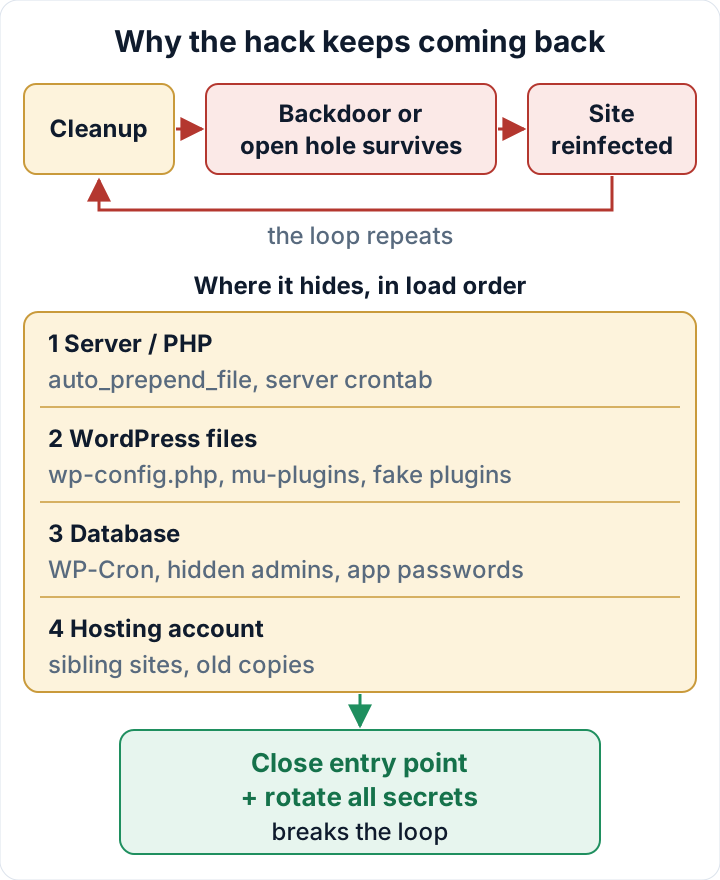
If WordPress keeps getting hacked after you cleaned it, the attacker almost certainly still has a way in. Either a backdoor survived the cleanup, or the hole they used the first time is still open. A fresh copy of core and a few deleted files fix neither.
This playbook assumes a cleanup has already happened. It goes through the places that typically survive one, in the order the code runs, with one specific check for each. It ends with the step that actually breaks the cycle.
Why WordPress keeps getting hacked after a cleanup
There are two causes, and you often have both. The first is persistence. Attackers rarely leave a single backdoor. They plant several in different places so that if you find one, the others keep working. The second is an entry point that is still open. That can be a vulnerable plugin, a stolen password, or a neighbouring site in the same hosting account.
The timing gives you a clue. A reinfection within hours of a cleanup usually points to a surviving backdoor or a scheduled job that rewrites files. A reinfection after days or weeks points more toward an open hole that someone, or some bot, found again.
Open holes get found quickly. Patchstack's State of WordPress Security in 2026 is a vendor report, so read it as such. It found that for heavily exploited vulnerabilities, the weighted median time to mass exploitation was 5 hours. About half of high-impact vulnerabilities were exploited within 24 hours. The same report says 46 % of vulnerabilities had no fix available at public disclosure. An unpatched plugin is not a small risk you can deal with next week.
Before you hunt: copy the evidence first
Make a full copy of the files and the database, and save the web server access logs, before you delete anything else. Then record file timestamps, so you can line up changes with log entries later:
cd /path/to/site
find . -type f -printf '%T@ %TY-%Tm-%Td %TH:%TM %p\n' | sort -n > ~/file-times-$(date +%F).txt
wp db export ~/evidence-db-$(date +%F).sql
The database export contains personal data, so move these copies off the server to secure storage. Otherwise the backup search further down will list them, and they could be read or deleted by mistake. Keep a simple list of every file, user and cron job you remove, with the date. You need it to find the entry point. If personal data was involved, you also need it because GDPR Art. 33(5) requires you to document every breach, even ones you don't notify. The full containment steps are in our WordPress malware removal plan.
Backdoors that run before WordPress loads
PHP's auto_prepend_file setting runs a file before every PHP request, before WordPress loads and before any security plugin can see it. Attackers like it for exactly that reason. It can be set in php.ini, in a .user.ini file in any directory, or with php_value in .htaccess on Apache with mod_php. Search the whole account:
grep -Rn --include='*.ini' --include='.htaccess' -E 'auto_(prepend|append)_file' ~ 2>/dev/null
php --ini
php --ini shows which configuration files the command-line PHP loads. The web server's PHP can use different ones, so also check the PHP settings in your hosting panel. Any value pointing to a file you don't recognise is a finding. Note the path, keep a copy of that file, then remove the setting. Changes to .user.ini can take a few minutes to apply, because PHP caches those files.
Next, check wp-config.php. A clean one has a single require_once ABSPATH . 'wp-settings.php'; near the end and nothing executable above the opening comment block. Look for anything else:
head -n 5 wp-config.php
grep -nE 'eval\(|base64_decode|gzinflate|str_rot13|include|require' wp-config.php
awk 'length > 300 {print FILENAME": line "NR" is "length" chars"}' wp-config.php
Then compare it with a known-good copy from an old backup with diff. If you have no clean copy, compare its structure with wp-config-sample.php. Extra includes, very long lines and code before the comment block do not belong there.
Hiding places inside wp-content: mu-plugins and fake plugins
Must-use plugins and drop-ins
Everything in wp-content/mu-plugins runs automatically on every request. WordPress shows them only on a separate Must-Use tab of the Plugins screen, PHP files in subfolders are not listed at all, and none of them can be deactivated from the dashboard. Many sites have no must-use plugins at all. Some hosts install one for caching or management.
ls -la wp-content/mu-plugins
wp plugin list --status=must-use
wp plugin list --status=dropin
Drop-ins are another place to check: object-cache.php, advanced-cache.php and db.php directly in wp-content. They are legitimate when your cache or host put them there. If nothing you installed explains them, treat them as suspicious.
Fake and lookalike plugin folders
A plugin folder with no valid plugin header does not show up in WordPress, but its PHP files can still be called directly by URL. Compare what is on disk with what WordPress knows:
ls -1 wp-content/plugins | sort > on-disk.txt
wp plugin list --field=name | sort > registered.txt
comm -23 on-disk.txt registered.txt
index.php and single-file plugins such as hello.php will appear in the output. Anything else needs a look. Watch for names that imitate real plugins, such as an extra hyphen, a version number in the folder name, or "wp-security-core". Then run wp plugin verify-checksums --all. It only covers plugins hosted on WordPress.org. For premium plugins, download a fresh copy from the vendor and compare it with diff -r. For WordPress core, follow our guide to verifying WordPress checksums.
Recently changed PHP files
find wp-content -type f -name '*.php' -mtime -30 -printf '%TY-%Tm-%Td %p\n' | sort
find wp-content -type f -name '*.php' -ctime -30
If you have not reinstalled core yet, -newer wp-includes/version.php is another useful reference point. Attackers can fake modification times with touch, but they can't easily fake the change time (-ctime), so run both. PHP files in uploads are covered separately in our guide to web shells in wp-content/uploads.
Persistence in the database and scheduler: cron, admins, app passwords
WP-Cron events live in the database and survive a file cleanup. List them:
wp cron event list --fields=hook,next_run_relative,recurrenceEvery hook should belong to core or to a plugin you know. For an unfamiliar hook, search the code with grep -Rn "hook_name" wp-content. If the code that registers it sits in an mu-plugin or in a file you can't explain, you have found a backdoor. A hook with no matching code can mean the backdoor was removed but the event remains. Delete the event with wp cron event delete hook_name.
Then check the server side: crontab -l for the hosting user, plus the cron section of your hosting panel. A job that runs curl or wget, or writes into the web root, can quietly restore a backdoor every night.
Accounts come next. This lists every administrator, then the application passwords of each one:
wp user list --role=administrator --fields=ID,user_login,user_email,user_registered
for id in $(wp user list --role=administrator --field=ID); do echo "User $id"; wp user application-password list "$id"; done
Application passwords keep working after a password change, so an unknown entry here is as serious as an unknown admin. The full review is in our guide to WordPress user roles.
Finally, look for injected scripts in content and settings. Replace wp_ if your table prefix differs:
wp db search 'script src=' wp_options wp_posts --stats
wp db search 'atob(' wp_options wp_posts --stats
wp db query "SELECT option_name, LENGTH(option_value) AS size FROM wp_options WHERE autoload IN ('yes','on','auto','auto-on') ORDER BY size DESC LIMIT 20;"
The first two searches find external script includes and the base64 decoding that injected JavaScript often uses. The query lists the largest autoloaded options; an unknown option name with a large value deserves a closer look.
The audit plugin from secaudit.eu reports these compromise indicators in one place: hidden admins, suspicious cron entries, database spam and core checksum mismatches. It detects and reports. The removal decisions stay with you → secaudit.eu
The rest of the hosting account: sibling sites and old copies
Shared hosting often runs several sites under one system user. An infected staging copy, a forgotten /old/ or /test/ install, or a backup ZIP in the web root will reinfect the site you just cleaned. List everything in the account:
find ~ -name wp-config.php 2>/dev/null
find ~ -type d -name wp-includes 2>/dev/null
find ~ -type f \( -name '*.zip' -o -name '*.tar.gz' -o -name '*.sql' \) 2>/dev/null
Clean every site in the account at the same time, or delete the ones nobody needs. If all sites share one SFTP user and one database user, any compromised site can write to all the others. Split them into separate users or separate hosting accounts where you can.
Close the entry point and rotate everything at once
Find the entry point in the access logs around the timestamp of the first infection. Look for POST requests to odd files and to the endpoints of the plugin you suspect:
grep '"POST ' access.log | awk '{print $7}' | sort | uniq -c | sort -rn | head -30Update the vulnerable plugin. If no fix exists or the plugin is abandoned, replace it. If you don't need it, delete it. Deactivating is not enough, because the files stay on disk and can still be reached by URL.
Then rotate every secret in a single session, after the cleanup and not before. If you rotate early, a surviving backdoor simply reads the new values.
- All WordPress administrator passwords, and every application password
- Database password: change it in the hosting panel, then update
DB_PASSWORDin wp-config.php - Hosting panel login, SFTP passwords and SSH keys (remove keys you don't recognise)
- API keys stored in plugins (payment, SMTP, CDN, backup storage)
- Security keys and salts:
wp config shuffle-salts
Rerun the same checks 24 hours later and again after 7 days, and compare the results with your evidence files. If a mu-plugin, cron event or modified file comes back, there is still something you haven't found.
FAQ
When should I stop doing this myself?
Stop at the second reinfection, or immediately if customer data may have been exposed or the site is a shop with orders. At that point, bring in professional incident response. If personal data is affected, also check whether the GDPR 72-hour notification to the supervisory authority applies. Our guide to the 72-hour breach notification explains when the clock starts.
Is restoring a backup enough?
Only if the backup predates the first backdoor and you have closed the entry point. Otherwise you restore the problem along with the site.
Does changing all passwords stop the attacks?
No. A surviving backdoor does not need a password. Rotate credentials after the hunt, not instead of it.
This article is general information, not legal advice.
Check your own site
Security Audit & Compliance is the WordPress plugin from secaudit.eu: it scans for malware, hidden spam, changed core files and vulnerable code, and maps its findings to GDPR Art. 32, NIS2 Art. 21 and the OWASP Top 10.
See what the plugin checks