Two-factor authentication for WordPress admins
How to set up WordPress two-factor authentication: TOTP apps, passkeys, backup codes, why SMS is weaker, who needs 2FA, rollout steps and NIS2 duties.
Also in: Deutsch Français Español Italiano Polski Português Türkçe

WordPress two-factor authentication (2FA) means that a password alone no longer opens your dashboard. After the password, the login asks for a second proof, usually a six-digit code from an app on your phone. It is one of the cheapest and most effective protections for admin accounts, and because WordPress core has no built-in two-factor authentication, you add it with a plugin.
This guide explains how the codes work, which second factor to choose, who in your team needs one, how to roll it out without locking anyone out, and how 2FA connects to GDPR and NIS2.
Why passwords alone fail
Passwords leak. When another service loses its user database, attackers feed the stolen email and password pairs into login forms all over the web. This is called credential stuffing, and it succeeds wherever someone has reused a password. Phishing is the second route: a convincing fake login page collects the password directly.
Every WordPress site has a public login form at /wp-login.php, and XML-RPC, which is enabled by default, accepts passwords as well. An Administrator can install plugins, which means running code on your server. Depending on your plugins, an Editor may see form entries or customer data. One leaked password can therefore turn into a personal data breach.
A second factor breaks this chain. The attacker may have the password, but not your phone or your security key.
How WordPress two-factor authentication works
The most common method is TOTP, short for time-based one-time password, standardised in RFC 6238. In plain terms:
- When you switch on 2FA, the plugin shows a QR code. It contains a secret key that your authenticator app stores; the server keeps a copy.
- The app combines that secret with the current time and calculates a short code, usually six digits. In the standard setup, a new code appears every 30 seconds.
- At login, after the correct password, WordPress asks for the current code. The server does the same calculation and compares the results.
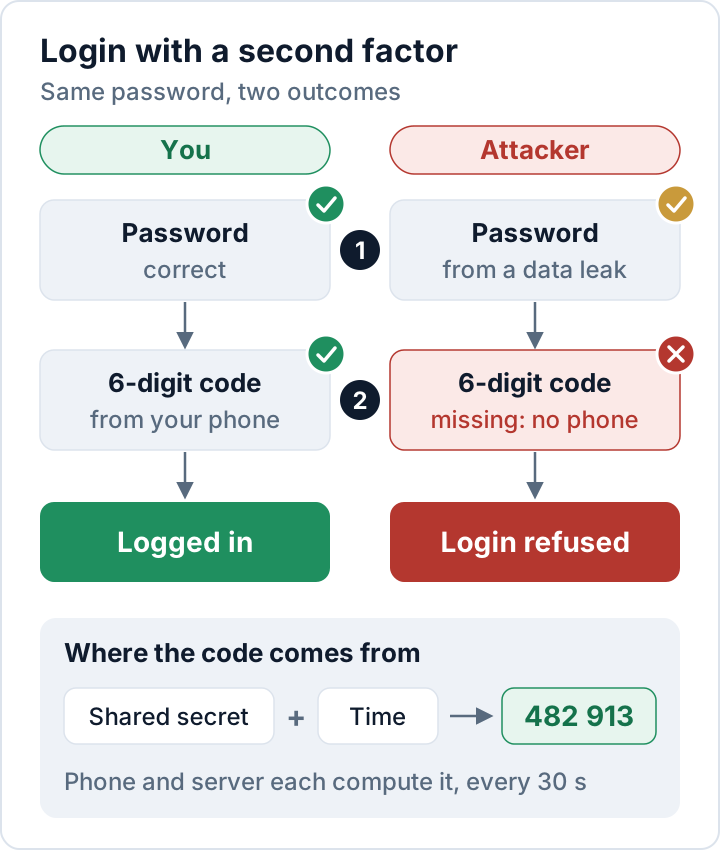
Because both sides calculate the code independently, nothing is sent to your phone, and the app works offline. The phone's clock matters, though: if codes are always rejected, check that the phone sets its time automatically.
Be clear about what 2FA does not do. It does not fix a vulnerable plugin, because an attacker exploiting a plugin bug never goes through the login form; that is why updates stay at the top of our WordPress security checklist. And a fake login page can still pass a TOTP code on to the real site within seconds. Only phishing-resistant methods such as passkeys and hardware security keys stop that kind of real-time phishing.
Choosing the second factor: app, passkey, SMS or email
Not all second factors are equally strong:
| Method | Strength | Notes |
|---|---|---|
| Passkey or security key | Highest | Phishing-resistant; needs plugin support |
| Authenticator app (TOTP) | High | Free, works offline, widely supported |
| Email code | Medium | Only as safe as the mailbox |
| SMS code | Lowest | SIM swapping, interception |
Passkeys are based on the WebAuthn standard and use a key pair stored on your phone, your computer or a hardware key. The browser only uses a passkey on the domain it was created for, so a look-alike phishing site gets nothing. If your 2FA plugin supports passkeys, offer them to administrators first.
Authenticator apps are the practical default. Any TOTP app works, for example Google Authenticator, Microsoft Authenticator, open-source apps such as Aegis or 2FAS, and many password managers.
SMS codes are weaker: criminals can take over a phone number through SIM swapping, and messages can be intercepted. The US guideline NIST SP 800-63B therefore treats codes sent over the phone network, such as SMS, as "restricted" authenticators. It is better than nothing, but we don't recommend it for admin accounts.
Backup codes are your spare key. Most plugins generate a set of single-use codes. Store them in your password manager or print them and keep them somewhere safe, but not next to your phone.
Who must use 2FA on WordPress
We recommend making two-factor authentication mandatory for:
- every Administrator and Editor, and on WooCommerce shops every Shop Manager;
- anyone who can see personal data, such as form entries, orders or customer accounts;
- agency and freelancer logins: each person gets their own account and their own second factor, never one shared "agency" login tied to one person's phone;
- the accounts around WordPress: hosting panel, SFTP or SSH, domain registrar, and the email account that receives password resets.
For Subscribers and shop customers, offering 2FA as an option is usually enough.
Rolling out 2FA in six steps
- Clean up accounts first. Remove former staff and agencies and lower roles that are higher than needed. There is no point protecting accounts nobody uses.
- Choose a plugin. Look for TOTP, backup codes, enforcement by role and, ideally, passkeys. The free Two Factor plugin on WordPress.org is maintained by WordPress contributors and covers TOTP and backup codes, but has no built-in enforcement by role. Security plugins such as Security Audit & Compliance from secaudit.eu also include TOTP two-factor login.
- Test with your own account. Enroll, log out, then log in again in a private browser window. Keep a second administrator account with 2FA as a fallback.
- Announce a date. Send a short guide that names the app to install and the deadline.
- Enforce it for the roles listed above, so nobody can skip the setup.
- Close the side doors. Disable XML-RPC if nothing uses it, or confirm that your plugin covers it. Review Application Passwords (available since WordPress 5.6): they are meant for API access and don't pass through the second-factor prompt, so keep only the ones you need.
Lost phone: recovering access safely
Lost and replaced phones are normal, so plan for them before they happen.
- Backup code: the user logs in with one backup code, sets up 2FA again on the new phone and generates fresh backup codes.
- Another administrator can usually reset the second factor for a user. Confirm the request through a channel you already trust, for example by calling the colleague back on a known number. "I lost my phone, please reset my 2FA" is a classic social-engineering line.
- Last resort for a locked-out sole admin: deactivate the 2FA plugin on the server, log in, and reactivate it immediately.
With WP-CLI, replace two-factor with your plugin's folder name:
wp plugin deactivate two-factorWithout WP-CLI, renaming the plugin's folder in wp-content/plugins/ via SFTP has the same effect; rename it back before you reactivate the plugin. This works for anyone with server access, which is exactly why hosting and SFTP accounts need strong protection too.
Two-factor authentication, NIS2 and GDPR
NIS2 is explicit: Art. 21(2)(j) of the NIS2 Directive lists multi-factor or continuous authentication among the minimum measures for entities in scope. Whether your company is in scope depends on size, sector and your country's national law, as explained in NIS2 and your WordPress site. Even if NIS2 does not apply to you directly, customers who are in scope must manage supply-chain security (Art. 21(2)(d)), and they increasingly ask agencies whether admin access is protected.
The GDPR does not name 2FA, but Art. 32 requires security measures that take the state of the art into account. For admin accounts with access to personal data, 2FA is cheap and widely available, which makes it hard to argue that it was not appropriate; see GDPR Article 32 for WordPress. Record when you enforced it and for which roles, because Art. 5(2) expects you to be able to demonstrate your measures.
FAQ
Does 2FA fully protect my WordPress site?
No. It protects the login. Vulnerable plugins, weak hosting and malware on a user's computer need their own measures.
Is a code by email good enough?
It is better than no second factor, but whoever controls the mailbox gets both the password reset link and the code. Use an app or a passkey for administrators.
Can several people share one 2FA-protected account?
They shouldn't. Give each person their own account; it is also the only clean way to revoke access when someone leaves.
This article is general information, not legal advice.
Check your own site
Security Audit & Compliance is the WordPress plugin from secaudit.eu: it scans for malware, hidden spam, changed core files and vulnerable code, and maps its findings to GDPR Art. 32, NIS2 Art. 21 and the OWASP Top 10.
See what the plugin checks