WordPress file permissions: 644, 755 and ownership
WordPress file permissions explained: what 755 and 644 mean, which user should own the files, safe reset commands, and why 777 never fixes upload errors.
Also in: Deutsch Français Español Italiano Polski Português Türkçe
WordPress file permissions: the safe default in one paragraph
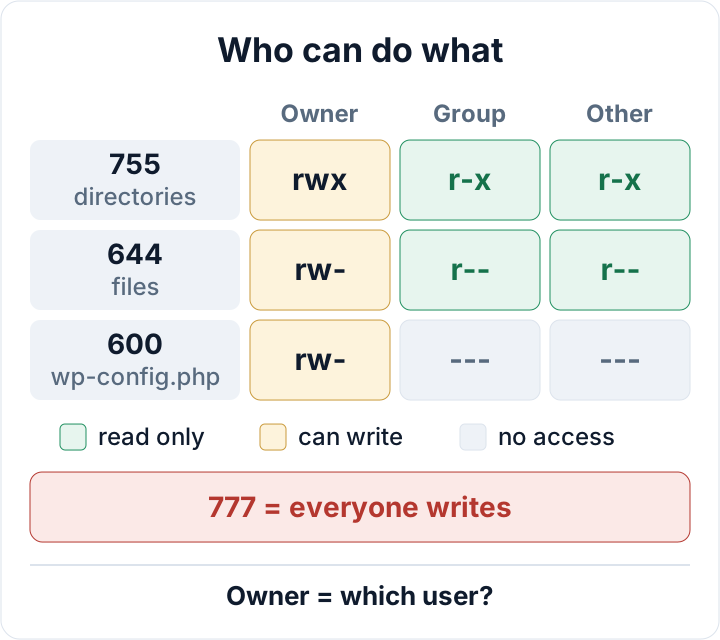
The safe default for WordPress file permissions is 755 for directories, 644 for files, and a stricter 640 or 600 for wp-config.php. Never use 777. These numbers only protect you if the right user owns the files, though. A perfect 644 on files owned by the wrong account either breaks uploads and updates, or quietly gives the web server more power than it needs. So read the ownership section before you change any modes.
Owner, group and other: reading 755 and 644
Run ls -l in your WordPress root and you'll see lines like this:
drwxr-xr-x  5 deploy www-data  4096 Oct 30 09:12 wp-content
-rw-r--r--  1 deploy www-data   405 Oct 30 09:12 index.php
-rw-r-----  1 deploy www-data  3214 Oct 30 09:12 wp-config.php
The first character shows the type (d for directory, - for file). After that come three groups of three letters: one for the owner (deploy), one for the group (www-data), and one for everyone else. r means read, w means write, and x means execute. Each letter has a value: r = 4, w = 2, x = 1. Add them per group and you get the octal mode, so rwxr-xr-x becomes 7-5-5.
On a directory, x means "may enter". Without it, PHP can't open the files inside, even if those files are readable. That's why directories need 755 and files only need 644. Nothing in a normal WordPress install needs the execute bit on a file.
| Mode | Letters | Typical use |
|---|---|---|
| 755 | rwxr-xr-x | Directories |
| 644 | rw-r--r-- | Normal files |
| 640 | rw-r----- | wp-config.php, PHP user in group |
| 600 | rw------- | wp-config.php, PHP user is owner |
Ownership matters as much as the mode
First, find out which user PHP runs as. On your own server, check the running processes:
ps -eo user,comm | grep -E 'php-fpm|apache2|httpd' | sort | uniqWith PHP-FPM, the master process runs as root and the workers run as the pool user. The pool file sets that user. On Debian and Ubuntu, it usually lives under /etc/php/<version>/fpm/pool.d/:
grep -R -E '^(user|group) *=' /etc/php/*/fpm/pool.d/The PHP-FPM configuration docs describe these settings. With Apache and mod_php, PHP runs as the Apache user itself: www-data on Debian/Ubuntu, apache on RHEL-based systems. Every site on that server then shares one identity. Good shared hosting isolates sites instead, so each account's PHP runs as that account's own user. If you can't run ps, look at Tools > Site Health > Info > Filesystem Permissions. It shows whether WordPress can write to its main directory, wp-content, uploads, plugins and themes.
Once you know the PHP user, choose one of two ownership models.
Model A: the PHP user owns everything. This is typical on isolated shared hosting, where your account user and the PHP user are the same. Dashboard updates, plugin installs and uploads all work. The downside is that any code running as PHP can also rewrite every file, including core, plugins and wp-config.php.
Model B: a deploy user owns the files, and PHP only reads. Files belong to something like deploy:www-data, at 755/644. PHP can read everything, but it can only write where you allow it: wp-content/uploads and any cache directories. You then update with WP-CLI or SFTP as the deploy user, not from the dashboard. This limits damage, but it adds work. If you also want to lock the dashboard for good, see DISALLOW_FILE_MODS and its trade-offs.
Model B explains a common puzzle: WordPress asking for FTP credentials when you click "Update". WordPress checks whether files it creates would have the same owner as its own files. If they wouldn't, it falls back to FTP. Forcing FS_METHOD to direct hides the symptom without fixing the cause. Decide which model you want, then set ownership to match.
How to reset WordPress file permissions safely
Take a backup of files and database first. Then go to the WordPress root and confirm you're in the right place:
cd /var/www/example.com/public
ls wp-config.php
If ls doesn't find wp-config.php, stop. (Some setups keep it one level above the web root, so check your layout.) Then reset the modes:
find . -type d -exec chmod 755 {} \;
find . -type f -exec chmod 644 {} \;
On large sites, the + variant is much faster because it passes many files to each chmod call:
find . -type d -exec chmod 755 {} +
find . -type f -exec chmod 644 {} +Change ownership only on a server you control. For Model B, that looks like this:
sudo chown -R deploy:www-data /var/www/example.com/publicThe reset also flattens the exceptions below, so reapply them right away. Then check the result with stat -c '%a %U:%G %n' wp-config.php wp-content/uploads, upload a test image, and load a few pages.
Exceptions: wp-config.php, uploads and .htaccess
wp-config.php holds your database password, so "other" should get nothing. Use 600 if the PHP user owns the file (Model A). Use 640 if a deploy user owns it and PHP reads it through the group (Model B). If you set 600 under Model B, PHP can't read the file and the site goes down. For salts, debug settings and stray backup copies, see wp-config.php hardening.
wp-content/uploads and cache directories must be writable by the PHP user. Under Model B, either make the PHP user the owner of those directories, or keep them group-owned by the PHP group with group write access (775 for directories, 664 for files). Keep write access limited to these paths, not the whole of wp-content.
On Apache, .htaccess is a special case. If it's writable, WordPress updates the rewrite rules when you save permalinks, and cache or security plugins add their own blocks. If it isn't writable, WordPress shows you the rules to paste in manually. A read-only .htaccess costs a little convenience. In return, code running as PHP can't add a redirect or an auto_prepend_file line to it.
Why 777 never fixes an upload error
777 lets every account and every process on the server write to the file or directory. On shared hosting, that can include other customers' compromised scripts. It can make an upload error go away, but only by removing the protection, not by fixing the cause. Check the real causes in this order:
- Wrong owner. The message "Unable to create directory wp-content/uploads/… Is its parent directory writable by the server?" almost always means the PHP user doesn't own (or can't write to) uploads. This often happens after a migration or a restore done as root.
- Disk or quota full. Check
df -hon your own server, or the quota in your hosting panel. - Temporary directory or path limits. "Missing a temporary folder" points to
upload_tmp_dir. Anopen_basedirrestriction that excludes the temp path can also block uploads. - Size limits. "The uploaded file exceeds the upload_max_filesize directive" means you need to raise
upload_max_filesizeandpost_max_size, or upload a smaller file.
On shared hosting, you usually can't run chown yourself. Ask your host to set ownership on your account to the correct user. That's a routine request.
What correct permissions don't protect against
Permissions limit what a user can do. They do nothing against code that already runs as that user. If a vulnerable plugin lets an attacker run PHP, their code has the PHP user's rights. Under Model A, that means everything. Under Model B, it still means uploads, cache directories and anything else you made writable. That's why attackers favor uploads, as described in web shells in wp-content/uploads.
Resetting permissions after a hack also doesn't remove a backdoor. The malicious file is still there, just with tidy modes. Follow a proper malware removal plan first, then fix permissions as part of the hardening step. Under GDPR, correct permissions can count as one of the technical measures that protect the integrity and confidentiality of personal data (Art. 32, EUR-Lex), but they only work as part of a wider set of measures.
Check permissions regularly
Permissions tend to drift. Migrations, backup restores, host changes and a quick sudo fix are the usual causes. Run these two checks from the WordPress root after each of those events, and every few months anyway:
find . -perm -o+w ! -type l
find . ! -user deploy
The first command lists anything world-writable (symlinks are excluded because they always show 777). The second lists files not owned by your expected owner. Replace deploy with your PHP user under Model A. Both should return nothing, or only paths you can explain. The WordPress.org file permissions guide covers the same baseline from the core team's side.
To keep an eye on the wider picture, the Security Audit & Compliance plugin from secaudit.eu runs hardening and configuration checks alongside file integrity monitoring, so changed or new files show up between your manual reviews → secaudit.eu
FAQ
Should wp-config.php be 400 or 440?
That also works if PHP can still read the file: 400 when PHP is the owner, 440 when PHP reads it through the group. The catch is that you'll need to change the mode back to edit the file. 600 or 640 is the usual compromise.
Is 755/644 safe on shared hosting?
Yes, if the host isolates accounts so your PHP runs as your own user. With 644, other accounts could technically read your files. Proper isolation prevents that, which is why your host's setup matters more than the digits.
Do I need to reset permissions after every update?
No. WordPress creates new files with sensible modes. Run the checks above instead, and only reset if they show problems.
Check your own site
Security Audit & Compliance is the WordPress plugin from secaudit.eu: it scans for malware, hidden spam, changed core files and vulnerable code, and maps its findings to GDPR Art. 32, NIS2 Art. 21 and the OWASP Top 10.
See what the plugin checks