WordPress user enumeration: REST API and author URLs
WordPress user enumeration explained: test which login names your site leaks via REST API, author URLs, sitemaps and login errors, and apply safe fixes.
Also in: Deutsch Français Español Italiano Polski Português Türkçe

On a default WordPress install, anyone can usually find your login names in under a minute. WordPress user enumeration works through five or six built-in channels: the REST API, ?author=1 redirects, author archive URLs, the users sitemap, login error messages and, in some cases, feeds and oEmbed data. This article shows how to test each channel on your own site and how to close it with a narrow fix that does not break the block editor.
What WordPress user enumeration is, and how much it matters
User enumeration means collecting valid account names from a site. An attacker who knows that mkeller exists can spend every password guess and every leaked password from other breaches on a real account instead of guessing admin, info and test.
Be clear about what hiding names achieves. It is a speed bump, not protection. Two-factor authentication and login throttling are what stop an account takeover, so set those up first (two-factor authentication for WordPress, brute force protection). Then close the leaks below, in this order: test, fix, re-test.
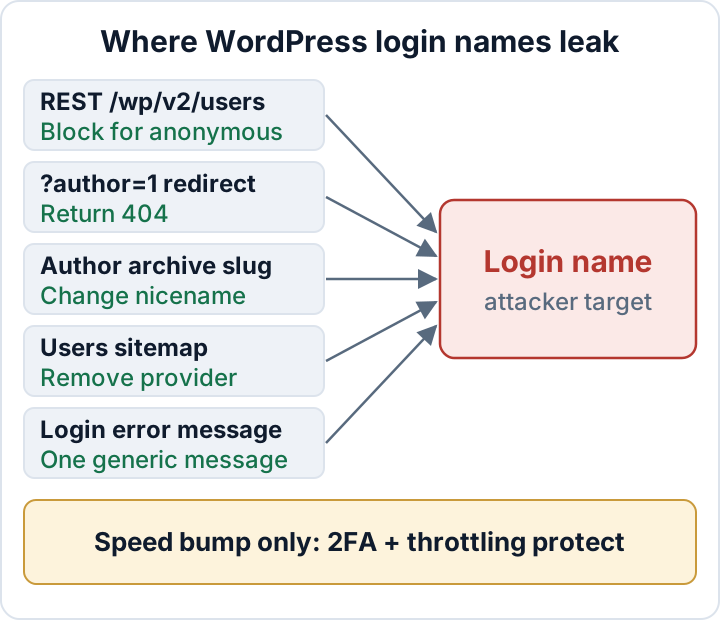
Test your own site: six places usernames leak
Run these tests only against sites you own or manage. Test while logged out, from a terminal or a private browser window, because logged-in sessions see more. Replace example.com with your domain.
- REST API. Core lists users who have published content. Look at the
slugfield, which is the author slug and usually identical to the login.
curl -s https://example.com/wp-json/wp/v2/users | grep -o '"slug":"[^"]*"'
curl -s "https://example.com/?rest_route=/wp/v2/users" | grep -o '"slug":"[^"]*"'- Author ID redirects. WordPress redirects
?author=Nto the pretty author URL. Try 1, 2, 3 and so on.
curl -sI "https://example.com/?author=1" | grep -i '^location'- Theme HTML. Author links on posts and CSS classes such as
comment-author-<slug>on comments by registered users.
curl -s https://example.com/a-post/ | grep -oE '/author/[^/"]+/|comment-author-[a-z0-9-]+' | sort -u- Users sitemap. Open
https://example.com/wp-sitemap-users-1.xmlin the browser.
- Login errors. On
wp-login.php, enter a made-up username, then a real one with a wrong password. If the messages differ, the form confirms valid accounts. The lost-password form behaves the same way. Keep it to two or three attempts so your own throttling does not lock you out.
- Feeds and oEmbed. The feed shows display names in
dc:creator. The oEmbed endpoint returnsauthor_nameandauthor_url, and that URL contains the author slug.
curl -s https://example.com/feed/ | grep -i 'dc:creator'
curl -s "https://example.com/wp-json/oembed/1.0/embed?url=https://example.com/a-post/"| Channel | Test | Reveals |
|---|---|---|
| REST users | /wp-json/wp/v2/users | Slug, name, ID |
| Author redirect | /?author=1 | Slug in Location |
| Theme HTML | Post and comment markup | Slug |
| Users sitemap | /wp-sitemap-users-1.xml | Author URLs with slug |
| Login errors | Unknown vs wrong password | Valid logins |
| Feed / oEmbed | dc:creator, author_url | Display name, slug |
The OWASP Web Security Testing Guide covers account enumeration testing in more depth if you want a structured method.
Restrict the REST users endpoint for anonymous visitors only
Target only the users route, and only for requests without a logged-in user. The block editor uses /wp/v2/users for the author selector, and mobile apps and many plugins call it with authentication. Remove the route for everyone and those break.
Create wp-content/mu-plugins/user-enumeration.php. Must-use plugins load automatically and cannot be deactivated from the dashboard. The rest_endpoints filter lets you drop routes before they are served:
<?php
/**
 * Plugin Name: Limit user enumeration
 */

add_filter( 'rest_endpoints', function ( $endpoints ) {
    if ( is_user_logged_in() ) {
        return $endpoints;
    }
    unset( $endpoints['/wp/v2/users'] );
    unset( $endpoints['/wp/v2/users/(?P<id>[\d]+)'] );
    return $endpoints;
} );
Re-run the curl test. You should now get a rest_no_route error with status 404. Then log in, open a post in the editor and check that the author panel still lists users.
If you run a headless front end or an app that reads author data anonymously, this snippet will break it. In that case, expose only the fields you need through a custom endpoint instead. The REST API users reference lists what the endpoint returns.
Stop author ID redirects and decide whether you need author archives
When someone requests /?author=2, WordPress resolves the user and its canonical redirect sends the visitor to /author/<slug>/. The Location header gives away the slug, and a script can walk through IDs 1 to 50 in seconds.
Add this below the first snippet in the same mu-plugin. It runs before the canonical redirect and answers anonymous requests with an author parameter with a plain 404, so no Location header gives the slug away:
add_action( 'template_redirect', function () {
    if ( is_user_logged_in() ) {
        return;
    }
    if ( isset( $_GET['author'] ) ) {
        wp_die( 'Not found.', '', array( 'response' => 404 ) );
    }
}, 1 );
Re-test with curl -sI "https://example.com/?author=1". You should now get a 404 and no Location header.
On a one-author company blog, or a site without public author pages, go further and switch author archives off. Most SEO plugins have a setting for this, and some themes do too. Be honest about the limit: if your theme prints "by <author>" links on every post, the slug is still in the HTML. That is what the next two sections deal with.
Remove the users sitemap where nobody needs it
Core sitemaps, added in WordPress 5.5, include a users provider that lists every author archive. Few business sites gain anything from it. The wp_sitemaps_add_provider filter removes it:
add_filter( 'wp_sitemaps_add_provider', function ( $provider, $name ) {
    if ( 'users' === $name ) {
        return false;
    }
    return $provider;
}, 10, 2 );
Open /wp-sitemap-users-1.xml again; it should now return a 404. If an SEO plugin replaces the core sitemaps, this filter does nothing for its output. Check the plugin's sitemap settings for an author sitemap and turn it off there.
Make display names and author slugs differ from login names
Under Users > Profile, set a Nickname and choose it under Display name publicly as. That covers feeds, oEmbed author_name and "by" lines.
Here is the trap. The author slug (user_nicename) is generated from the login when the account is created and does not change when you change the display name. Your posts may say "Editorial team" while the URL still reads /author/mkeller/. Fix it with WP-CLI:
wp db export before-nicename.sql
wp user list --fields=ID,user_login,user_nicename,display_name
wp user update 2 --user_nicename=editorial-team
Use lowercase letters, digits and hyphens, and keep each slug unique. Old author URLs change, so expect a few 404s or add a redirect if those pages had traffic.
For new accounts, avoid admin, the company name and the domain name as logins. If old or shared accounts are part of the problem, clean them up first: WordPress user roles security.
Generic login error messages
The login_errors filter replaces the messages shown on the login screen with one neutral text:
add_filter( 'login_errors', function () {
    return '<strong>Error:</strong> The login details are incorrect.';
} );
This also replaces helpful messages, such as the empty-field hint, so your users get less guidance. It does not make the site opaque either. The lost-password form still behaves differently for valid accounts, since a real account leads to the "check your email" screen. Some plugins add their own login forms, and WooCommerce's My Account page has its own messages. Treat this as consistency, not as a strong control.
What hiding usernames does not stop
Attackers try common names and email addresses whether or not your site leaks them, and WordPress accepts the email address as a login. Credential stuffing, which replays username and password pairs from other breaches, needs no enumeration at all. A perfectly hidden username list does nothing against a reused password.
So the order for a small business site is:
- Two-factor authentication for every administrator and editor (setup guide).
- Login throttling and a decision on XML-RPC (brute force protection).
- The enumeration fixes above, tested with the curl commands.
- Add the result to your regular review (WordPress security checklist).
The Security Audit & Compliance plugin from secaudit.eu includes login throttling and anonymous REST rate limiting, and its hardening scan reports configuration findings so you can see what is still open → secaudit.eu
Your next step: run the six tests from this article against your site today, log the results, and fix the channels that show a real login name.
FAQ
Does blocking /wp/v2/users break the block editor?
Not if you restrict it to anonymous requests, as in the snippet above. The editor sends authenticated requests, so the author selector keeps working. Removing the route for logged-in users would break it.
Is "admin" still a risk if I have 2FA?
Much less of one. With 2FA, a guessed password alone does not get anyone in. But admin attracts constant guessing, which fills logs and can trigger lockouts, so it is still worth replacing.
Should I rename the login itself, and how?
WordPress has no button for changing a login name. Create a new administrator with a neutral login and 2FA, log in with it, then delete the old account and assign its content to the new one when WordPress asks. Keep one working administrator at all times. The details are in WordPress user roles security.
Check your own site
Security Audit & Compliance is the WordPress plugin from secaudit.eu: it scans for malware, hidden spam, changed core files and vulnerable code, and maps its findings to GDPR Art. 32, NIS2 Art. 21 and the OWASP Top 10.
See what the plugin checks