SFTP vs FTP for WordPress: switch to SSH keys
SFTP vs FTP for WordPress: why plain FTP must go, how to delete old FTP accounts, set up SSH keys per person and remove FTP passwords from wp-config.php.
Also in: Deutsch Français Español Italiano Polski Português Türkçe
Open the FTP accounts page in your hosting panel. On many WordPress sites you will find at least one login that nobody can explain. It might be from the agency that built the site, from a freelancer who fixed a plugin three years ago, or a test account named ftp1. On the question of SFTP vs FTP, the answer is simple: delete those accounts, stop using plain FTP, and give each person their own SSH key for SFTP. This guide walks through that change in an order that does not lock anyone out.
SFTP vs FTP: why plain FTP has to go
Plain FTP sends your username, password and every file without encryption. Anyone on the network path can read all of it, for example on hotel Wi-Fi, through a compromised office router or at a careless network provider. That includes wp-config.php with your database password, if you ever download it over FTP.
FTP logins also sit completely outside WordPress. Two-factor authentication on wp-admin does not protect them, and they do not appear in your WordPress user list. Someone with a working FTP password can upload a PHP file and run code on your site without ever seeing the login page.
Switching protocols has clear limits. SFTP does not help if the laptop holding the key is infected, and it does nothing about a vulnerable plugin. It closes one specific door: readable credentials and forgotten logins to your file system.
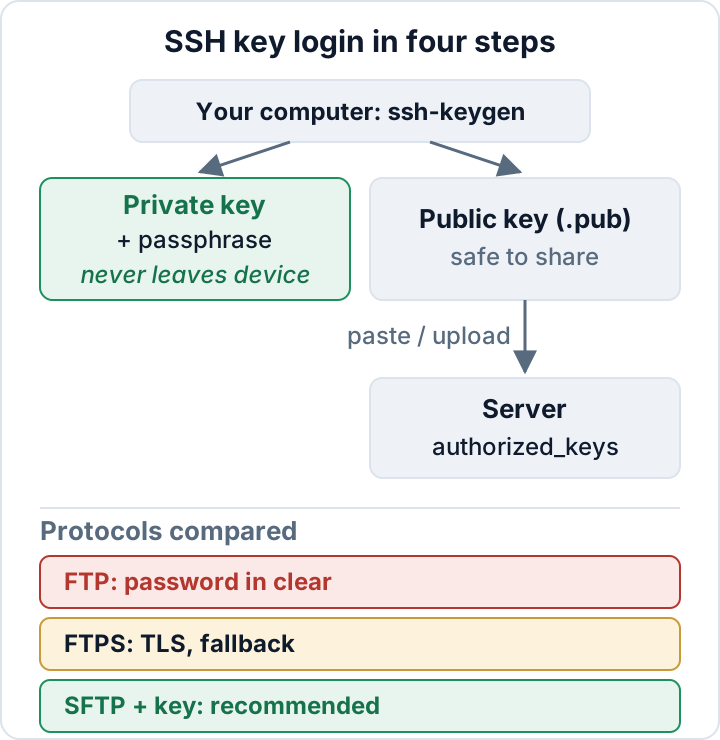
FTP, FTPS and SFTP compared
The names are confusing, so here is the short version.
| FTP | FTPS | SFTP | |
|---|---|---|---|
| Encryption | None | TLS | SSH |
| Typical port | 21 | 21 (explicit) or 990 (implicit) | 22 |
| Connections | Control + data | Control + data | One |
| Key login | No | No (certificates only) | Yes |
| Verdict | Never | Fallback | Recommended |
FTPS is the old FTP protocol wrapped in TLS. It encrypts the traffic, but it still opens separate data connections. Those often clash with firewalls and NAT, and the result is the classic "directory listing failed" error. SFTP is unrelated to FTP despite its name. It is a subsystem of SSH, runs over a single encrypted connection, and supports login with SSH keys instead of passwords.
Our recommendation: use SFTP if your host offers SSH access. Use FTPS only as a fallback. Do not use plain FTP at all. In FileZilla, set the protocol in the Site Manager to "SFTP - SSH File Transfer Protocol". If you have to use FTPS, choose "Require explicit FTP over TLS". Do not pick "Use explicit FTP over TLS if available", because that option quietly falls back to plain FTP when TLS fails. WinSCP offers the same choice under "File protocol".
Find and delete old FTP accounts first
Start with an inventory before you create any keys. Look in these places:
- The FTP accounts section of your hosting panel (cPanel, Plesk and similar panels all have one).
- The SSH access or SSH keys section, including keys that are already authorized.
- On your own server: system users with a login shell (
grep -vE 'nologin|false' /etc/passwd) and every~/.ssh/authorized_keysfile.
For each account, write down who uses it and what for. If nobody can name the owner, delete the account. Changing its password is not enough. If the main hosting account password was ever typed into an FTP client, change it as well. That password has travelled unencrypted at least once.
Keep a short record of the cleanup: date, accounts removed, who approved it. Do the same review for WordPress logins in parallel. Our guide to WordPress user roles security covers that side.
Generate an SSH key with a passphrase (one per person)
Each person creates their own key on their own computer. macOS, Linux and current Windows versions all include OpenSSH:
ssh-keygen -t ed25519 -C "anna@example-company.eu"Accept the default location, then set a passphrase when prompted. Do not skip the passphrase. The command creates two files:
~/.ssh/id_ed25519is the private key. It never leaves the device.~/.ssh/id_ed25519.pubis the public key. This is the one you share.
To avoid typing the passphrase for every connection, load the key into an agent once per session with ssh-add ~/.ssh/id_ed25519. On Windows, enable the "OpenSSH Authentication Agent" service first. Some clients, such as PuTTY, need the .ppk format. PuTTYgen can import the OpenSSH key and save a .ppk copy. The ssh-keygen manual lists all options.
Why one key per person? Removing someone's access then means deleting one line, and logs show whose key was used. Shared keys and shared logins make both of those impossible, so retire them during this migration.
Add the public key: hosting panel or ~/.ssh/authorized_keys
On managed or shared hosting, open the SSH access or SSH keys section. Paste the public key, give it a recognizable name, and authorize it if the panel asks you to (cPanel has a separate "Authorize" step).
On your own server, append the key to the user's authorized_keys file and set strict permissions:
mkdir -p ~/.ssh
chmod 700 ~/.ssh
cat anna.pub >> ~/.ssh/authorized_keys
chmod 600 ~/.ssh/authorized_keys
If password login still works, ssh-copy-id -i ~/.ssh/id_ed25519.pub user@host does the same from the person's own computer. Keep the comment at the end of each key line (anna@example-company.eu). It is how you will recognize the key two years from now.
Test key login, then switch off password login
Keep your current session or panel tab open. In a second terminal, test the new key:
ssh -i ~/.ssh/id_ed25519 user@hostOr connect with your SFTP client using the key file. Only when that works for every person who needs access should you disable password authentication. In a hosting panel, this is usually a toggle in the SSH section. On shared hosting where you cannot find one, ask your host whether password SSH and FTP logins can be turned off for your account.
On your own server, set this in /etc/ssh/sshd_config:
PasswordAuthentication no
KbdInteractiveAuthentication no
Also check files in /etc/ssh/sshd_config.d/. Some cloud images ship a drop-in that sets PasswordAuthentication yes. Validate the configuration and confirm the effective value before you reload:
sudo sshd -t
sudo sshd -T | grep -i passwordauthentication
sudo systemctl reload ssh
The service is called sshd on Red Hat-based systems.
From now on, offboarding includes one step: on the day someone leaves, delete their key line.
FS_METHOD and FTP credentials in wp-config.php
Sometimes WordPress shows a "Connection Information" form when you install or update a plugin. That happens because PHP cannot write to the files directly, which is usually an ownership problem. Our article on WordPress file permissions explains the cause.
A common workaround was to put FTP details into wp-config.php:
define( 'FS_METHOD', 'ftpext' );
define( 'FTP_HOST', 'ftp.example.de' );
define( 'FTP_USER', 'webuser' );
define( 'FTP_PASS', 'the-hosting-password' );
This makes updates work, but the hosting password now sits in plain text in a file that PHP reads on every request. If wp-config.php leaks, through a backup copy, a misconfigured server or a vulnerable plugin, file access leaks with it. Check for these constants:
grep -nE "FS_METHOD|FTP_(HOST|USER|PASS|SSL|PUBKEY|PRIKEY)" wp-config.phpRun this check in the directory above as well, because some setups keep wp-config.php one level up. Remove the constants and fix ownership so that WordPress can write files directly. In that case, FS_METHOD set to 'direct' works, or you can leave it out entirely. Use 'ssh2' only where the PHP ssh2 extension and a dedicated key are set up properly. Then delete the FTP account that was referenced, or at least rotate its password. The WordPress wp-config.php documentation describes all of these constants. Our wp-config.php hardening checklist covers the other settings in that file.
The free Security Audit & Compliance plugin from secaudit.eu scans the site for exposed secrets and files and for hardening issues, which helps you spot credentials left in the wrong place. It cannot see the FTP account list in your hosting panel, so the inventory above remains a manual task.
FAQ
Is FTPS good enough if my host has no SSH?
It is acceptable as a fallback, because the traffic is encrypted. Set your client to require TLS, use a strong unique password per person, and still delete the old accounts. If your host offers no SSH access at all and cannot say when it will, consider moving to a different host.
Do I need SSH keys for SFTP, or is a password OK?
SFTP with a password is already far better than FTP, because the password travels encrypted. Keys are still better. They cannot be guessed or phished from a fake login page, because the private key never leaves your device. Using one public key on several servers does not expose it the way a reused password does, and each key can be removed individually.
What if someone loses their laptop with a key on it?
Remove that person's public key from every server and panel the same day. The passphrase buys you time, but it is not a reason to wait. The person then generates a new key pair on their new device.
Is plain FTP a GDPR problem?
GDPR Art. 32(1)(a) names encryption as an example of an appropriate security measure. Unencrypted logins to a server that holds customer or contact-form data are therefore hard to justify. Our article on GDPR Article 32 for WordPress explains the rest of the article and the risk-based approach behind it.
This article is general information, not legal advice.
Check your own site
Security Audit & Compliance is the WordPress plugin from secaudit.eu: it scans for malware, hidden spam, changed core files and vulnerable code, and maps its findings to GDPR Art. 32, NIS2 Art. 21 and the OWASP Top 10.
See what the plugin checks