WordPress user roles security: clean up admin accounts
WordPress user roles security: find every admin, remove old staff and agency logins, revoke stale application passwords and run a quarterly access review.
Also in: Deutsch Français Español Italiano Polski Português Türkçe
Most WordPress sites have more administrators than they need. Every one of those accounts can install a plugin, and installing a plugin means running code on your server. Good WordPress user roles security comes down to one rule, least privilege: each person gets their own account with the lowest role that still lets them do their job.
WordPress user roles security starts with an admin count
Start by counting your administrators. In the dashboard, go to Users > All Users and click the "Administrator" filter above the list. Write down the number and the names.
With WP-CLI, you get the same list with registration dates:
wp user list --role=administrator --fields=ID,user_login,user_email,user_registeredOn a multisite network, also check who has network-wide control:
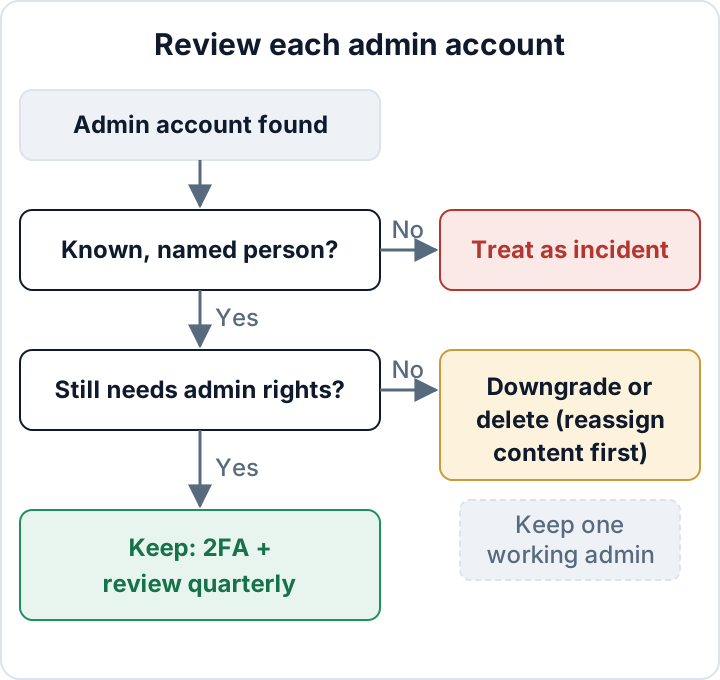
wp super-admin listFor each account, ask a simple question: can you name the real person behind it, and do they still need full control? If the answer is unclear, the account goes on your review list. The WP-CLI user commands documentation lists every option used in this article.
The five default roles and who should get which
WordPress core ships with five roles, plus Super Admin on multisite. The official Roles and Capabilities page has the full capability list. In short:
| Role | Can do | Typical person |
|---|---|---|
| Super Admin | Everything across a multisite network | Network operator |
| Administrator | Plugins, themes, users, settings | Owner, agency lead |
| Editor | Publish and edit all posts and pages | Marketing staff |
| Author | Publish own posts, upload files | Regular writer |
| Contributor | Write own drafts, no publishing | Guest writer |
| Subscriber | Edit own profile | Member, shop customer |
Plugins add their own roles and capabilities. WooCommerce, for example, adds "Shop Manager" and "Customer", and a Shop Manager can see orders full of customer personal data. SEO, LMS and membership plugins often do something similar. Look at the role filter on the Users screen for any role you don't recognize and check what that plugin's documentation says it can do.
My recommendation: daily content work runs on an Editor account. The administrator account is used for updates and maintenance only. On a single site, Editors can still post unfiltered HTML, so this is not a security boundary for untrusted people. It does mean a phished marketing login can no longer install plugins.
Accounts to remove or downgrade: former staff, agencies, shared logins
The same few account types show up on almost every small business site:
- Former employees whose account was never removed when they left.
- The previous agency, still listed as administrator years after the contract ended.
- A freelancer from a one-off project, such as a redesign or a shop migration.
- A shared "office" or "info" login used by several people.
- The "admin" username from the original installation.
Shared logins are the hardest to defend. When five people use one account, you cannot tell who changed a setting or exported customer data. You also cannot cut off one person without changing the password for everyone. Give each person their own named account.
Agencies should work the same way. Each staff member gets a named account, and those accounts are removed on the day the contract ends. If an agency has admin access to a site with personal data, it is usually a processor under GDPR Art. 28. Its access belongs in the records you keep with the processor agreement. For the evidence side, see what to keep in a security audit report.
The "admin" username cannot be renamed from the dashboard, because WordPress shows "Usernames cannot be changed" on the profile screen. Create a new administrator with a personal username instead:
wp user create jane.doe jane@example.com --role=administratorLog in as the new user, then delete the old "admin" account and reassign its content, as described in the next section.
Delete safely: reassign content and keep one working administrator
wp user delete 7 --reassign=2To downgrade rather than delete, for example a staff member who still writes articles:
wp user set-role mark.writer editorDowngrading is often the safer first step. If nobody complains for two weeks, delete the account.
Application passwords: the logins that survive a password change
Application Passwords have been part of core since WordPress 5.6. They let apps and integrations, such as a mobile app, a reporting tool or an automation service, authenticate to the REST API. The catch is that they keep working when the user's main password is changed. If you reset a former agency's password but leave its application password in place, the agency still has access.
Review them for each administrator: go to Users > All Users, edit the user and scroll down to Application Passwords. With WP-CLI:
wp user application-password list jane.doeThe list shows when each password was created and last used. Revoke anything you cannot match to a current integration:
wp user application-password delete jane.doe <uuid>Name every new application password after the integration that uses it, for example "Zapier – order export", so the next review is quick. If nobody on the site uses the feature, many security plugins and some hosts can switch it off completely.
Hidden admin accounts after a hack: how to spot them
Attackers who get in sometimes create their own administrator and hide it with code that filters the user query. The account then doesn't appear under Users, and it may not show up in wp user list either, because WP-CLI loads the same plugins. A direct database query bypasses that code:
wp db query "SELECT u.ID, u.user_login, u.user_email, u.user_registered FROM wp_users u JOIN wp_usermeta m ON m.user_id = u.ID WHERE m.meta_key = 'wp_capabilities' AND m.meta_value LIKE '%administrator%'"The wp_ prefix is only the default. Run wp db prefix first and replace wp_ in both table names and in the meta key. If your prefix is xy7_, the key is xy7_capabilities. On multisite, each site has its own key, such as wp_2_capabilities.
Compare the result with the dashboard count. Then look for recent user_registered dates and email domains that don't belong to anyone you work with. A hidden or unexplained administrator is a sign of compromise, not a clean-up task. Don't just delete it. Follow the steps in signs your WordPress site has been hacked.
The compromise-indicator scan in the secaudit.eu plugin checks for hidden administrators as part of its audit.
A quarterly access review for NIS2 and GDPR evidence
A review takes about 15 minutes. Run it every quarter, and also whenever someone leaves or an agency contract changes:
- Export the administrator list (and Super Admins on multisite).
- Confirm the person and the role for each account. Downgrade or remove the rest.
- Check the roles added by plugins, such as Shop Manager.
- List and prune application passwords for every administrator.
- Confirm all administrators use two-factor authentication.
- Confirm the dashboard file editor is disabled.
- Record the date, the reviewer and what you changed.
That last record is what turns a habit into evidence. NIS2 Art. 21(2)(i) lists human resources security, access control and asset management among the minimum measures (Directive (EU) 2022/2555). The actual obligations come from each country's transposition, so check your country's national NIS2 law. Under the GDPR, access control is part of the "appropriate technical and organisational measures" in Art. 32, and Art. 5(2) requires you to be able to demonstrate them (Regulation (EU) 2016/679).
One limitation to keep in mind: WordPress core does not record when a user last logged in. To find dormant accounts, you need an activity-log plugin or your server's access logs. Otherwise, rely on asking people directly.
The Security Audit & Compliance plugin from secaudit.eu helps with the recurring part. It flags hidden admins, weak or default passwords and hardening gaps such as an enabled file editor, maps the findings to GDPR Art. 32 and NIS2 Art. 21, and exports a report you can file with your review notes.
FAQ
Is renaming the "admin" username enough to stop attacks?
No. It removes one easy guess, but usernames can often be discovered in other ways. Strong unique passwords and two-factor authentication do far more.
Can an agency share one admin login across its staff?
No. Each person needs a named account, so you can see who did what and remove one person's access without affecting the others.
What happens to WooCommerce orders or posts when I delete a user?
Posts and pages are deleted unless you reassign them. Plugins store their own data in different ways, so check the plugin's documentation before you delete customer or shop staff accounts. Downgrade the account first if you are unsure.
This article is general information, not legal advice.
Check your own site
Security Audit & Compliance is the WordPress plugin from secaudit.eu: it scans for malware, hidden spam, changed core files and vulnerable code, and maps its findings to GDPR Art. 32, NIS2 Art. 21 and the OWASP Top 10.
See what the plugin checks