WordPress web shells in uploads: find and block them
Find WordPress web shells in wp-content/uploads with safe commands, block PHP execution on Apache and nginx, review file permissions and close the entry point.
Also in: Deutsch Français Español Italiano Polski Português Türkçe
If you suspect a WordPress web shell in uploads, there are three separate jobs. You find the file and preserve it. You stop direct requests from running PHP in wp-content/uploads. You close the route that let the file in. Each job solves a different problem, and none of them amounts to a full recovery on its own.
This article gives the commands and server settings for each job and explains what each one does not do.
What a web shell is, and why wp-content/uploads is the favorite spot
A web shell is a small script, usually PHP, that gives an attacker a remote control panel on your server. Depending on the server, it can let them run commands, read wp-config.php with your database password, query the database and upload more files.
Attackers like wp-content/uploads because WordPress normally needs write access there. Media, form attachments and plugin exports all land in that folder, and its files are served directly by URL. If a PHP file lands there and the server executes it, anyone on the internet can call it.
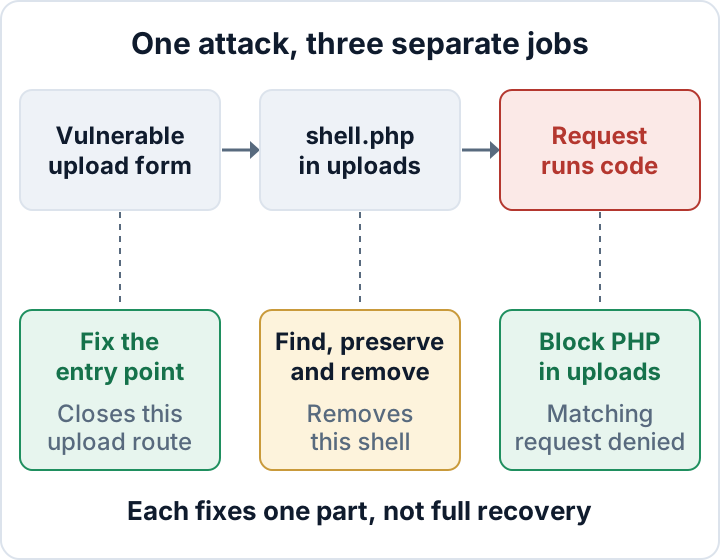
How web shells get into wp-content/uploads
The usual routes in are unglamorous:
- An upload form that accepts any file type, such as a contact-form or job-application plugin that stores attachments in uploads.
- An arbitrary-file-upload bug in a plugin or theme.
- Broken access control, where a function meant for admins can be called by anyone. The Patchstack State of WordPress Security in 2026 report, which is a vendor report, names this the most exploited category.
- A stolen account combined with a weakness. WordPress's default file-type checks normally stop an Editor from uploading a
.phpfile. A stolen account becomes an upload route when that role can also reach a plugin upload bug, or when the site's configuration grants theunfiltered_uploadcapability. An Administrator on a single site can usually install plugins and use the dashboard file editors.DISALLOW_FILE_EDITdisables those editors;DISALLOW_FILE_MODSalso blocks dashboard plugin and theme installation and updates. On multisite, only Super Admins have those powers.
Shells are rarely named shell.php. Look for double extensions like invoice.pdf.php, the alternative extensions .phtml and .phar, and names that imitate cache or thumbnail files. PHP code hidden inside a .jpg is a warning sign, but it does not run just because it contains PHP. It only runs if the server hands that file to PHP or if another vulnerable script includes it.
Plugins are where the risk is concentrated. Patchstack attributes 91 % of 2025's new WordPress-ecosystem vulnerabilities to plugins. For heavily exploited vulnerabilities, it reports a weighted median of 5 hours to mass exploitation. Our guide to vulnerable plugins covers how to keep up with that pace.
Finding a WordPress web shell: PHP files in uploads
These commands do not change files. Run them over SSH from the WordPress root, which is the folder that contains wp-config.php. Start with the obvious extensions:
find wp-content/uploads -type f \( -iname '*.php' -o -iname '*.phtml' -o -iname '*.phar' \) -lsinvoice.pdf.php matches because it ends in .php. To catch variants such as .php5 or image.php.jpg, widen the pattern to -iname '*.ph*' and expect more noise.
Next, list files changed recently, or files newer than an upload you know is clean:
find wp-content/uploads -type f -mtime -7 -ls
find wp-content/uploads -type f -newer wp-content/uploads/2026/09/known-good.jpg -ls
Attackers can fake modification times, so treat them as hints. To find PHP code in image-named files:
grep -rli --include='*.jpg' --include='*.jpeg' --include='*.png' --include='*.gif' --include='*.webp' --include='*.ico' '<?php' wp-content/uploadsNote that grep reads file contents, and reading a file can update its access time. If you already suspect a compromise, ask your host for a snapshot first.
Not every hit is malicious. Some plugins drop an index.php placeholder that contains only a comment, and some cache or form plugins write PHP into their own subfolder. Before you open a candidate, save its metadata as described in the next section. Then inspect it with less or xxd file | head -40. Never open it in a browser, because that may run it. Long encoded strings, eval, base64_decode or assert combined with request variables are strong warning signs.
Also search the access log for requests to PHP files in uploads. A POST to such a file is rarely legitimate:
grep -E '"(GET|POST) /wp-content/uploads/[^ ]*\.(php|phtml|phar)' access.logFound one? Preserve evidence before you delete anything
Record the metadata first, then copy the file and the logs. Store everything in a private directory that is outside every document root your server serves. On some shared hosts the home directory itself is web-accessible, so check the document root in your control panel or vhost config.
umask 077
mkdir -p ~/ir-evidence && chmod 700 ~/ir-evidence
f="wp-content/uploads/path/to/suspicious.php"
case_id="webshell-$(date -u +%Y%m%dT%H%M%SZ)-$RANDOM"
stat "$f" > ~/ir-evidence/"$case_id"-stat.txt
sha256sum "$f" > ~/ir-evidence/"$case_id"-sha256.txt
tar -czpf ~/ir-evidence/"$case_id"-file.tar.gz "$f"
tar -czpf ~/ir-evidence/"$case_id"-logs.tar.gz /path/to/access.log* /path/to/error.log*
The timestamp and random suffix reduce the chance of reusing an evidence filename; check for existing filenames before repeating the capture. Hosts rotate logs, so copy them now. Then download the evidence to a secure place off the server, and write down the path and the matching log lines.
Treat database credentials in wp-config.php as potentially exposed. Assess whether personal data was accessed, disclosed, altered, lost or made unavailable: a working shell is a serious warning, but does not by itself establish a personal data breach under the GDPR. Art. 33 requires notifying the supervisory authority without undue delay and, where feasible, within 72 hours of becoming aware of a personal data breach, unless it is unlikely to result in a risk to people's rights and freedoms. Art. 33(5) requires you to document every breach, including ones you do not report. Our 72-hour guide has the details. For the full cleanup, follow our malware removal plan.
Block PHP execution in the uploads folder (Apache and nginx)
Legitimate media never needs to run as PHP. On Apache 2.4, create wp-content/uploads/.htaccess:
<FilesMatch "\.(?i:php|phtml|phar)$">
    Require all denied
</FilesMatch>
Apache only honors this file if AllowOverride permits it for that directory, which for Require means All or at least AuthConfig. If overrides are disabled, ask the host to place the block inside a <Directory> section restricted to the absolute filesystem path of this site's uploads directory. Do not place it unscoped in the virtual host, because that could block PHP across the site.
On nginx, add this to the server block:
location ~* ^/wp-content/uploads/.*\.(php|phtml|phar)$ { deny all; }nginx first finds the longest matching prefix location. If that location uses ^~, for example location ^~ /wp-content/uploads/, nginx never evaluates regex locations, and your rule is ignored. In that case the deny rule has to go inside that block. Otherwise, regex locations are checked in order and the first match wins, so this rule must come before your general location ~ \.php$ block. If WordPress lives in a subdirectory such as /blog/, or uses a custom uploads URL, adjust the path. Check the effective configuration, then reload:
sudo nginx -T | grep -n 'location'
sudo nginx -t && sudo systemctl reload nginx
On managed hosting, ask support to apply the rule.
These rules deny direct web requests matching the listed extensions when the server configuration applies them. They do not cover every executable suffix or prevent another PHP script from including an uploaded file. They neither delete shells nor prevent uploads. Ask your host which suffixes are mapped to PHP, and extend the list if needed.
Verify the rule with a test file
Use a new, random filename. With noclobber set, the command refuses to overwrite an existing file, and it only deletes a file it created itself:
t="wp-content/uploads/exec-test-$(date +%s)-$RANDOM.php"
if ( set -o noclobber; printf '%s\n' '<?php echo "marker-" . (40 + 2);' > "$t" ); then
  curl -sS -i "https://example.com/$t"
  rm -- "$t"
else
  echo "Not created: $t already exists"
fi
If the body contains marker-42, PHP executed the file, because that string is not in the file itself. If you see the raw <?php line with status 200, PHP did not run but the server is exposing source code. That is a separate problem for your host. A 200 status alone proves nothing. A 403 only counts if your rule produced it, not a CDN or WAF. Test against the origin with curl --resolve example.com:443:ORIGIN_IP, and look for "access forbidden by rule" (nginx) or "client denied by server configuration" (Apache) in the origin error log.
File permissions and ownership for WordPress: review, don't reset
Permissions and ownership together decide what the PHP process can change. Ownership alone does not settle it, because group bits, "other" bits and ACLs also grant write access. Do not run a recursive chmod across the whole site. It can make private files such as backups world-readable, and it can strip the executable bit from maintenance scripts.
First, find out who owns the files and which user PHP runs as:
stat -c '%U:%G %a %n' wp-config.php wp-content wp-content/uploads
ps -eo user,group,comm | grep -E 'php-fpm|php|httpd|apache2' | sort -u
On many shared hosts PHP runs as your own account user. Ordinary read-only mode bits offer limited protection in that setup: the file owner can generally change them to restore write access, unless other filesystem or hosting restrictions prevent it.
Next, list what the PHP user can actually write, plus anything world-writable. Replace PHPUSER with the user you found:
sudo -u PHPUSER find . -writable ! -type l -print
find . -perm -o+w ! -type l -ls
Review the two lists separately: world-writable paths generally need correction, while PHP-writable paths depend on your update model. A read-only deployment should normally limit PHP writes to uploads and required runtime folders; dashboard and automatic updates need additional write access. Fix the reviewed paths one by one with symbolic removal, for example chmod g-w,o-w path/to/file. Removing bits never loosens a stricter existing mode. The WordPress hardening guide treats 755 for directories and 644 for files as the usual upper bound. Set wp-config.php to 640 or 600, depending on how PHP reads it, and test the site afterwards. Never use 777.
There is a limit you cannot avoid. PHP must be able to write to uploads, so a vulnerable plugin running as that user can still write there.
define( 'DISALLOW_FILE_EDIT', true ); in wp-config.php removes the dashboard file editors. DISALLOW_FILE_MODS goes further but also switches off automatic background updates. Only use it if you update another way.
Close the hole that let the shell in, then keep watching uploads
Deleting the shell does not fix the cause. While the entry point stays open, reinfection remains possible.
Compare the saved stat output with the access log. Look for the form or plugin endpoint that received a POST shortly before the file appeared. Then update the plugin, or reconfigure it: restrict allowed file types, and store attachments outside the web root if the plugin supports that. If no safe update or mitigation is available, delete the plugin. Deactivation is not a reliable substitute, because its files remain on disk and some may still be directly reachable. After that, rotate admin passwords, the salts in wp-config.php and the database credentials.
Keep watching afterwards:
- Run the combined
findcommand in a daily cron job that mails you any output. - Add file-integrity monitoring.
- Run
wp core verify-checksumsregularly.
The Security Audit & Compliance plugin from secaudit.eu helps with monitoring. It keeps a file-integrity baseline, reports changes and obfuscated content, and checks malware signatures and compromise indicators. It detects and reports. It does not remove anything. For other warning signs, see 12 signs your WordPress site has been hacked.
FAQ
Is every PHP file in wp-content/uploads malicious?
No. Placeholder index.php files and some plugin folders are legitimate. Record the metadata, inspect the file without executing it, and check which plugin owns the folder.
Does a security plugin or WAF make the uploads rule unnecessary?
No. A firewall can miss a new attack pattern. The server rule is a separate layer that denies direct requests for the listed extensions even when an upload gets through.
Is blocking PHP in uploads enough if I already found a shell?
No. Preserve the evidence, clean the site and close the entry point. The shell may already have been used to plant files elsewhere or to read your database.
This article is general information, not legal advice.
Check your own site
Security Audit & Compliance is the WordPress plugin from secaudit.eu: it scans for malware, hidden spam, changed core files and vulnerable code, and maps its findings to GDPR Art. 32, NIS2 Art. 21 and the OWASP Top 10.
See what the plugin checks