Verify WordPress checksums: find modified core files
How to verify WordPress checksums with WP-CLI or the WordPress.org API, read modified vs extra file warnings, check plugins and reinstall core safely.
Also in: Deutsch Français Español Italiano Polski Português Türkçe
If you suspect a hack, checksum verification is a useful early check, but it should not delay containment or evidence preservation. One command tells you whether your core files are byte-identical to the official release. Files covered by the official checksum list should match your exact version and language. Site-specific files such as wp-config.php are outside that comparison. Any difference is either a local change you know about or something to investigate today.
Why WordPress core files change after a hack
Core files are a good hiding place because nobody reads them. Site owners look at their theme and plugin settings. Hardly anyone opens wp-includes/load.php or counts the files in wp-admin/includes. An attacker can hide code in a regularly loaded core file or add a plausible-looking file for later access. An added file does not run merely because it sits in a core directory.
Checksums turn "it looks fine" into a provable comparison. WordPress.org publishes an MD5 hash for every core file of every release. You compare your files against that list.
Keep the cause in mind, though. Patchstack's State of WordPress Security in 2026 is a vendor report. It counts only 6 vulnerabilities in WordPress core in 2025, all low priority. That count does not tell you how an attacker entered your site. Modified core files may be the result of an intrusion through a plugin, a theme or stolen credentials. Replacing core repairs those files, but you still need to identify and close the entry point.
How to verify WordPress checksums with WP-CLI
Connect over SSH and run the command from the WordPress root directory:
cd /var/www/example.com
wp core verify-checksums
If you are in another directory, add --path=/var/www/example.com. Run the command as the user that owns the site files, not as root. WP-CLI refuses to run as root unless you add --allow-root, and that default is sensible. As root, any malicious code that WordPress loads would also run as root.
By default, WP-CLI reads the version from wp-includes/version.php. On a compromised site, that file can be modified too. If you know which version you installed, pin it. For non-English installs, also set the locale:
wp core verify-checksums --version=6.8.3 --locale=de_DEUse your own version number. On a clean site you see one line:
Success: WordPress installation verifies against checksums.On a problem site you see warnings like these:
Warning: File doesn't verify against checksum: wp-includes/functions.php
Warning: File should not exist: wp-includes/class-wp-cache-handler.php
Error: WordPress installation doesn't verify against checksums.
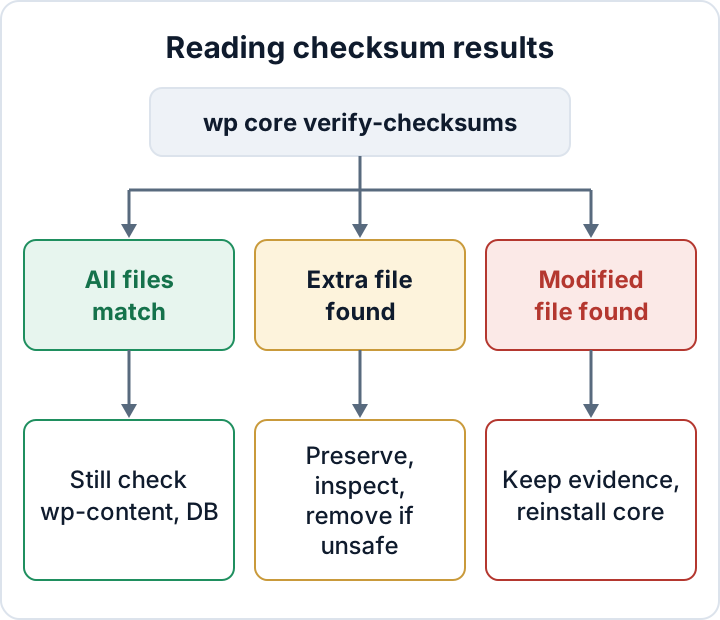
Reading the results: modified files vs extra files
The two warning types mean different things and need different handling.
| Output | Meaning | What to do |
|---|---|---|
Success: ... verifies | Core files match | Check wp-content and the database next |
File should not exist | Extra file in a checked directory | Preserve and inspect; remove if malicious or confirmed unnecessary |
File doesn't verify | Core file content changed | Treat as compromised, reinstall core |
Treat a modified file as serious unless you know of a legitimate local patch. Such patches are rare, and whoever made one should have documented it.
An extra file is less clear-cut. Some updates leave files from older versions behind, so an extra file is not proof of malware. A randomly named PHP file in wp-includes is suspicious until you have read it. So is a file whose name only sounds like a core component.
Extra files may be reported as warnings without making the command fail. You can see File should not exist lines followed by Success. Read every warning instead of relying on the final line.
By default, the extra-file check covers wp-admin and wp-includes. Some WP-CLI versions can also check the root directory. Run wp help core verify-checksums to see whether your version offers --include-root.
No WP-CLI? Use the WordPress.org checksums API
Some hosts offer SSH but no WP-CLI. In that case, query the checksums API directly and let md5sum compare the files. You need curl and jq:
cd /var/www/example.com
VER=6.8.3        # your exact WordPress version
LOC=en_US        # or de_DE, fr_FR, ...
(
  set -e
  WORK=$(mktemp -d)
  trap 'rm -rf -- "$WORK"' EXIT
  curl -fsS "https://api.wordpress.org/core/checksums/1.0/?version=$VER&locale=$LOC" \
    -o "$WORK/response.json"
  jq -er '.checksums | select(type == "object" and length > 0) | to_entries[] | select(.key | startswith("wp-content/") | not) | "\(.value)  \(.key)"' \
    "$WORK/response.json" > "$WORK/core.md5"
  test -s "$WORK/core.md5"
  md5sum -c --quiet "$WORK/core.md5"
)
The select filter skips the bundled themes and plugins in wp-content, which you may have deleted on purpose. With --quiet, md5sum prints only the files that fail.
No output and a zero exit status mean the files in the filtered checksum list match. A download, parsing or verification error is not a clean result. The subshell uses a private temporary directory and stops if an earlier step fails.
This method does not detect extra files. To find those, download the same release, for example https://wordpress.org/wordpress-6.8.3.zip. For non-English installs, use the matching locale site. Unpack the archive and compare the folders:
diff -rq wordpress/wp-includes /var/www/example.com/wp-includes
diff -rq wordpress/wp-admin /var/www/example.com/wp-admin
Only in /var/www/... lines identify extra installed files. Only in wordpress/... lines identify files missing from the installation. Files ... differ lines identify content differences. Inspect unexpected directories too.
Plugins and themes: where checksums stop working
WP-CLI can check plugins as well:
wp plugin verify-checksums --allThis only works for plugins hosted on WordPress.org, because only those have published checksums. Plugins without a matching WordPress.org checksum set cannot be verified this way.
If a nulled or tampered copy keeps the slug and version of a WordPress.org plugin, the command can still compare it and will flag the changed files. WP-CLI has no equivalent built-in theme checksum command.
For those plugins and for themes, get the exact installed version from its official source or a trusted build archive. For custom code, use a known-good release artifact, not a copy taken from the suspect site. Then compare it with the installed copy:
diff -rq ~/clean/some-premium-plugin wp-content/plugins/some-premium-pluginAlso look for plugin folders you cannot match to anything you installed. An unknown folder in wp-content/plugins is a red flag. A nulled plugin is a problem in itself, whatever the diff shows. The plugin vulnerabilities guide covers replacing nulled and abandoned plugins.
Reinstalling WordPress core safely
First save the evidence and take a full backup. Then replace core with a clean copy of the same version:
wp core download --force --skip-content --version=6.8.3Add --locale=de_DE or your language if needed. The command overwrites the core files. It leaves wp-config.php alone because the package contains no such file. --skip-content leaves wp-content untouched.
The command does not remove extra files. A file such as wp-includes/class-wp-cache-handler.php stays where it is, because the download only writes official files. Copy and review each extra file first. Then remove the ones that are malicious or that you have confirmed are unnecessary. Run wp core verify-checksums again and check that no unexplained warnings remain.
What a clean checksum result does not tell you
A green result only covers WordPress core. It says nothing about:
wp-content: themes, premium and custom plugins,mu-pluginsanduploadswp-config.phpand.htaccess, which are not on the checksum list- The database: injected options, spam in posts, rogue administrator accounts, scheduled cron events
- Files outside WordPress, such as other PHP files in the hosting account or server-level configuration
Attackers know which files get checked. That is one reason wp-content/uploads is a favorite place for web shells. Work through the signs of a hacked site for the remaining checks. For uploads, use the web shells guide.
Ongoing file integrity monitoring
A one-off check helps during an incident. A scheduled check can shorten the time a modification goes unnoticed, but changes may affect visitors before the next run. A small script run by cron is enough:
#!/bin/bash
cd /var/www/example.com || exit 1
OUT=$(/usr/local/bin/wp core verify-checksums 2>&1)
if [ $? -ne 0 ] || echo "$OUT" | grep -q "Warning:"; then
  echo "$OUT" | mail -s "Core checksum alert: example.com" admin@example.com
fi
Install this in the site owner's crontab, not root's. The script alerts on a non-zero exit code and on any warning, including reported extra files. Set a known PATH or use full executable paths, because cron has a limited environment. Test that an alert actually arrives; replace mail with your working alerting system if needed.
For wp-content, keep your own baseline after each known-good update:
find wp-content/plugins wp-content/themes -type f -exec sha256sum {} + > ~/baseline-$(date +%F).sha256Store the baseline outside the web root, ideally off the server. To check for changes, run sha256sum -c --quiet against the baseline from the site root. That catches modified and deleted files but not new ones. For new files, compare a fresh find file list with the list in the baseline. Create a new baseline after every legitimate update, or the next check will flag your own changes.
Regular checks also support compliance. GDPR Art. 32(1)(d) requires a process for regularly testing, assessing and evaluating your security measures. A scheduled integrity check with saved results is concrete evidence of that process. See GDPR Article 32 for WordPress for the wider picture.
If you prefer not to maintain scripts, the Security Audit & Compliance plugin from secaudit.eu keeps a file integrity baseline and reports changed files and obfuscated content. It also runs core checksum verification. It detects and reports. Cleaning up remains your job or your agency's job.
FAQ
Does verify-checksums work on multisite and non-English installs?
Yes. A multisite network shares one set of core files, so one run covers the whole network. For non-English installs, pass the correct --locale, because localized packages can differ from en_US.
Is a "File should not exist" warning always malware?
No. Files left behind by older WordPress versions also trigger it. Keep a copy and inspect the file. Remove it if it is malicious or you have confirmed it is unnecessary. Unexplained PHP code in a core folder always needs a proper look.
How often should I run it?
Daily through cron is reasonable for most business sites. Also run it after an incident, after every core update, and whenever someone new gets server access.
Can a hacker fake the checksum result?
The checksums themselves come from WordPress.org over HTTPS. An attacker who controls your server could still tamper with the local tools, such as the WP-CLI file or system binaries. If in doubt, copy the site files to a clean machine and compare them there against a fresh download of the same release.
Check your own site
Security Audit & Compliance is the WordPress plugin from secaudit.eu: it scans for malware, hidden spam, changed core files and vulnerable code, and maps its findings to GDPR Art. 32, NIS2 Art. 21 and the OWASP Top 10.
See what the plugin checks