Vulnerable WordPress plugins: audit, update, replace
How to handle WordPress plugin vulnerabilities: keep an inventory, update fast, delete unused or abandoned plugins, and know what to do when no fix exists.
Also in: Deutsch Français Español Italiano Polski Português Türkçe
The weak spot of a WordPress site is rarely WordPress itself. Handling WordPress plugin vulnerabilities comes down to four habits: know exactly what is installed, update quickly, delete what you don't need, and replace what nobody maintains any more.
This guide shows how to build each habit, how to recognize abandoned plugins, and what to do in the awkward case where a vulnerability is public but no fix exists yet. It is one item of our WordPress security checklist, and for most sites the one that matters most.
What the numbers say about WordPress plugin vulnerabilities
Detailed yearly figures come from Patchstack's report State of WordPress Security in 2026, which covers 2025. Patchstack is a security vendor that sells protection for these risks, so read it as one well-informed source, not as an official statistic. Its key findings:
- 11,334 new vulnerabilities in the WordPress ecosystem in 2025, 42 % more than in 2024.
- 91 % were in plugins and 9 % in themes. WordPress core had six, all low priority.
- 17 % (1,966) were high severity and likely to be used in automated mass attacks.
- 46 % had no fix available from the developer when they were publicly disclosed.
- Broken access control was the most exploited category.
In other words: your plugin list is your attack surface. Every plugin is code from another team that you trust with your site and the data on it.
Why update speed matters
Attackers don't choose sites by hand. They scan the internet for a vulnerable plugin version and exploit every hit automatically. According to the same report, the weighted median time to mass exploitation for heavily exploited vulnerabilities was five hours, and about half of the high-impact vulnerabilities were exploited within 24 hours.
A monthly maintenance window is too slow for these cases. Security releases need a faster track than feature updates. Timely patching is also a basic part of the "appropriate" security measures that GDPR Article 32 requires, and NIS2 lists vulnerability handling among its minimum measures (Art. 21(2)(e)) for organizations in scope.
Step 1: Keep a plugin inventory
You can't update or assess what you don't know about. A simple inventory per site, even a spreadsheet, should record:
- plugin name, slug and installed version
- source: WordPress.org, a commercial vendor, or custom code
- why it is installed and who asked for it
- license status and renewal date for premium plugins
- whether auto-updates are on
With WP-CLI you can export most of this in one command:
wp plugin list --fields=name,status,version,update_version,auto_updateRecent WP-CLI versions can also show what WordPress.org knows about each plugin, including whether it has been closed:
wp plugin list --fields=name,version,wporg_status,wporg_last_updatedPlugins that are not hosted on WordPress.org usually show empty values here, so check those with their vendor. Do the same for themes with wp theme list.
Step 2: Delete plugins you don't use
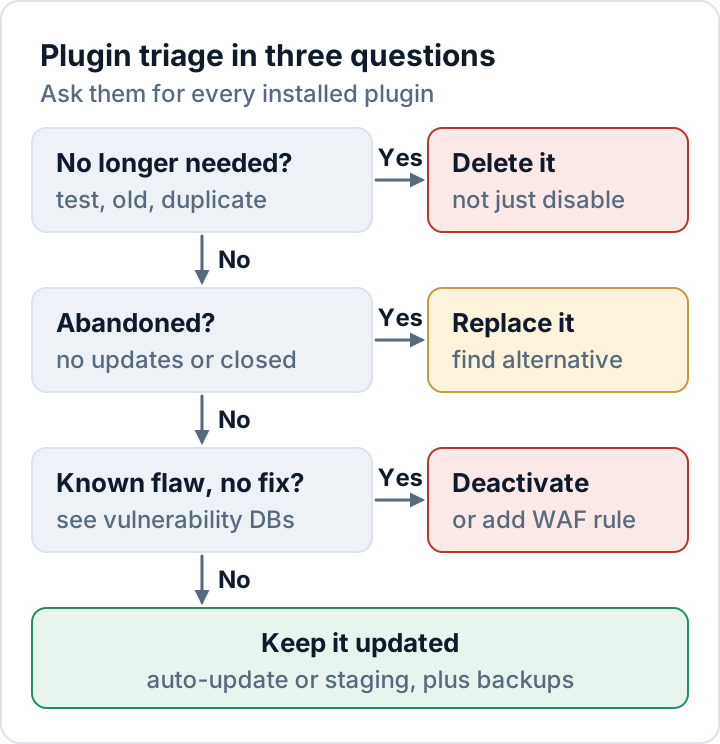
Deactivating a plugin stops WordPress from loading it, but its files stay on the server. Some vulnerabilities can be triggered by requesting a plugin's files directly, and inactive plugins tend to drop out of update routines. WordPress's own Site Health screen (Tools → Site Health) warns: "Inactive plugins are tempting targets for attackers."
When a plugin is no longer needed, take a backup, then deactivate and delete it on the Plugins screen. On the command line:
wp plugin uninstall old-slider --deactivatewp plugin uninstall runs the plugin's own uninstall routine, which may also remove its settings and data from the database, and then deletes the files. wp plugin delete only removes the files. Export anything you still need first.
Typical candidates: test plugins left over from a project, duplicate functions (two caching or SEO plugins), one-time migration tools, and plugins whose job WordPress core now does.
Step 3: Replace abandoned and nulled plugins
A plugin without an active maintainer won't get a fix when the next vulnerability is found.
Signs that a plugin is abandoned
- No recent updates. Check the "Last updated" date on the plugin's WordPress.org page. WordPress.org also shows a notice when a plugin "hasn't been tested with the latest 3 major releases of WordPress".
- Closed on WordPress.org. A red notice says the plugin "has been closed and is no longer available for download". After 60 days the reason is added, and "Security Issue" is one of the possible reasons. Whatever the reason, while a plugin is closed, no updates reach you through WordPress.org.
- Unanswered support threads, especially ones that mention security problems.
- Premium plugins whose vendor has gone quiet: no changelog entries, broken license renewals, no reply from support.
The WordPress.org alerts and warnings documentation explains these notices. When you see them, plan a replacement before an emergency forces you to.
Never use nulled plugins
"Nulled" plugins are pirated copies of premium plugins with the license check removed. An unknown third party has modified the code, and nobody can tell what else was changed. Hidden backdoors are a well-known problem with such copies. They also never receive updates or support, so you can't patch them when the next vulnerability appears.
If you find one on a site, replace it with a licensed copy and treat the site as possibly compromised.
Step 4: Update fast, with auto-updates or staging
Since WordPress 5.5 you can enable auto-updates per plugin in the "Automatic update" column on the Plugins screen. By default WordPress runs them twice a day and emails you the results (WordPress.org documentation). With WP-CLI: wp plugin auto-updates enable --all.
Given how quickly attacks follow, auto-updates are the right default for most plugins. Staging still makes sense where a broken update costs real money:
| Plugin type | Suggested approach |
|---|---|
| Simple, widely used plugins | Auto-update, with daily backups |
| Shop, payment, membership, page builder | Test on staging, update the same day |
| Custom or in-house code | Your own release and test process |
| Fix for an actively exploited flaw | Update now, test afterwards |
Whichever you choose, keep backups you have actually restored once, and make sure someone reads the update emails.
Step 5: Track vulnerabilities and act on them
Where to look up plugin vulnerabilities
- The changelog on the plugin's WordPress.org page or the vendor's site. Look for entries such as "security fix", but expect some vendors to describe fixes vaguely.
- Public vulnerability databases such as the WPScan and Patchstack databases, which you can search by plugin name. Both are run by companies that also sell security services.
- Vendor advisories and newsletters for premium plugins.
Checking dozens of plugins by hand doesn't scale. Security Audit & Compliance, the audit plugin from secaudit.eu, flags outdated plugins, themes and core out of the box. Once you turn on its vulnerability checks, it also matches the installed versions against known vulnerabilities from the free secaudit.eu vulnerability database, built every night from the official CVE List; your plugin list never leaves your site.
What to do when no fix exists yet
Almost half of all vulnerabilities (46 %) had no fix at disclosure. If one affects a plugin you use:
- Assess your exposure. Can anonymous visitors reach the vulnerable feature, or only logged-in administrators?
- Deactivate the plugin if you can live without it for a while, and delete it if no fix arrives.
- Replace it with a maintained alternative if the vendor stays silent.
- Use virtual patching if the plugin is essential: some web application firewalls (WAFs) and security services provide rules that block requests matching the known exploit. This buys time; it does not fix the code.
- Check for compromise, especially if the flaw was public for a while before you noticed. Our list of signs that a WordPress site has been hacked is a good starting point.
If you sell plugins: the Cyber Resilience Act
For vendors, vulnerability handling is becoming a legal duty, and part of it already applies. A paid plugin or theme sold to EU customers is a "product with digital elements" under the Cyber Resilience Act, and its seller is the manufacturer. Since 11 September 2026, manufacturers must report actively exploited vulnerabilities in their products through ENISA's Single Reporting Platform: an early warning within 24 hours, a notification within 72 hours and a final report within 14 days after a corrective measure is available.
From 11 December 2027 the main obligations follow, including security updates during the support period, a vulnerability handling process, a coordinated disclosure policy and a software bill of materials. Free, non-monetized open-source plugins are generally outside this manufacturer regime. Details are in our Cyber Resilience Act guide for plugin sellers.
FAQ
Is a deactivated plugin safe?
No. Its files remain on the server and can still contain exploitable code. Delete plugins you don't use.
Should I turn on auto-updates for every plugin?
For most plugins, yes, combined with reliable backups. Test business-critical plugins on staging first, but keep that delay short.
What if a plugin I rely on was closed on WordPress.org?
Treat it as unmaintained until it is reopened with a fixed version, and start looking for an alternative now.
This article is general information, not legal advice.
Check your own site
Security Audit & Compliance is the WordPress plugin from secaudit.eu: it scans for malware, hidden spam, changed core files and vulnerable code, and maps its findings to GDPR Art. 32, NIS2 Art. 21 and the OWASP Top 10.
See what the plugin checks