DISALLOW_FILE_EDIT: disable the WordPress file editor
How to add DISALLOW_FILE_EDIT to wp-config.php, what it does not stop, and when DISALLOW_FILE_MODS is worth it without breaking WordPress updates.
Also in: Deutsch Français Español Italiano Polski Português Türkçe

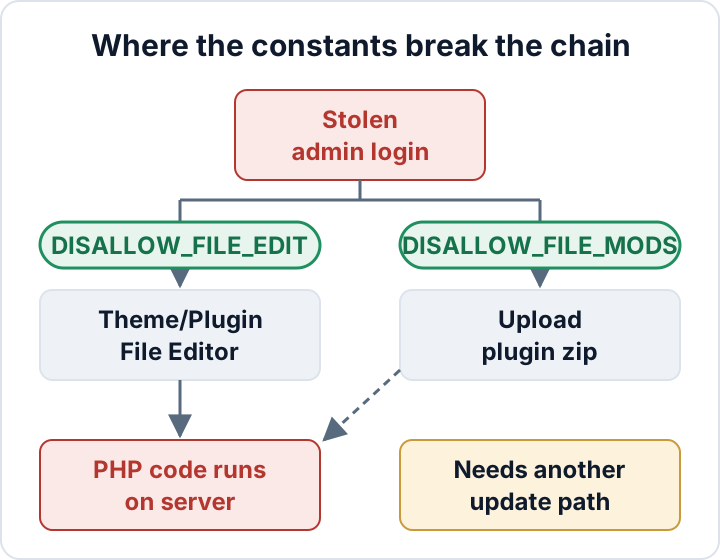
Add one line to wp-config.php: define( 'DISALLOW_FILE_EDIT', true );. This line removes the Theme File Editor and the Plugin File Editor from the dashboard. It takes two minutes and does not affect updates. It also removes the shortest route from a stolen admin password to code running on your server.
This article covers why DISALLOW_FILE_EDIT matters, how to set it safely, and what it does not stop. It also covers when the stronger DISALLOW_FILE_MODS is worth the extra work.
Why DISALLOW_FILE_EDIT matters: from admin login to running code
WordPress ships with two built-in code editors. The Theme File Editor is under Appearance for classic themes or under Tools for block themes. The Plugin File Editor is under Plugins for classic themes, or also under Tools for block themes. Both let administrators (on multisite, super admins) change PHP files in the browser and save them, and the server runs that code on the next page load.
So an admin login is effectively shell access. Someone with a phished, reused or brute-forced admin password can open functions.php and paste a backdoor. They can also add a hidden redirect for search engine visitors or inject a card skimmer into a checkout template. None of this needs FTP or hosting access, only the login.
Most production sites never need in-browser code editing. Developers work in a code editor, on staging, or through version control. Editing live PHP in a textarea has no undo and no review, and one syntax error can take the site down. For a live business site, the editor adds risk and little else.
Protecting the login itself is a separate job. Our guide on two-factor authentication for WordPress admins covers that. DISALLOW_FILE_EDIT limits what a stolen login can do.
How to add DISALLOW_FILE_EDIT to wp-config.php
- Download a copy of
wp-config.phpand keep it as a backup. On many hosts it sits in the WordPress root. Some setups place it one directory above. - Open the file over SFTP or with your host's file manager. Do not use a WordPress plugin for this.
- Search the file for
DISALLOW_FILE_EDIT. If it is already defined, change that line instead of adding a second one. Defining a constant twice triggers a PHP warning. - Add the line above the comment that starts with
/* That's all, stop editing!. It must come beforewp-settings.phpis loaded. - Save, upload, and reload the dashboard.
/* Disable the Theme and Plugin File Editors in the dashboard */
define( 'DISALLOW_FILE_EDIT', true );

/* That's all, stop editing! Happy publishing. */
Then check the result. The Theme File Editor and Plugin File Editor menu entries should be gone. If you open /wp-admin/theme-editor.php directly, you should now get a permissions error instead of the editor.
You cannot switch this constant back on from the dashboard, and that is the point. Anyone who wants the editor back needs file access to the server, not just an admin password. The setting applies to the whole installation, and on multisite it covers every site in the network. The official wp-config.php documentation lists it together with the other configuration constants.
If you have no SFTP or file manager access, the Security Audit & Compliance plugin from secaudit.eu has an optional switch that disables the dashboard file editors.
What disabling the file editor does not protect against
DISALLOW_FILE_EDIT removes the easiest route. It does not make an admin account harmless. An administrator, or an attacker using that account, can still:
- upload a plugin or theme zip that contains malicious code, under Plugins → Add New Plugin or Appearance → Themes
- create new administrator accounts, change the admin email, or reset other users' passwords
- change settings, such as the site URL, user registration or the default role
- export user and order data
Attackers with FTP, SSH, hosting panel or database access bypass WordPress entirely, and no wp-config.php constant stops them. The constant also does nothing against vulnerable plugins that can be exploited without any login. That is a separate problem with its own fixes, covered in our guide to vulnerable WordPress plugins.
Treat DISALLOW_FILE_EDIT as one layer. It is cheap and well worth having, but it does not fix a weak login or an unpatched plugin.
File manager and code-snippet plugins: the editor by another name
Several kinds of plugins bring back the same risk, and DISALLOW_FILE_EDIT does not cover them:
- file manager plugins that let you browse, edit and upload files from the dashboard
- code-snippet managers that store PHP and run it on every request
- "insert header/footer code" fields that accept scripts or PHP
- theme or page-builder options with a "custom code" box
If any of these is active, an attacker with an admin login still has a code editor.
Start by listing what you have. Go through Plugins → Installed Plugins and your theme options, and note everything that can edit files or run custom code. Then handle each type:
- File managers: delete them as soon as the one-off task is finished. Deactivating is not enough, because the code stays on the server and may itself have vulnerabilities.
- Snippets you really need: move them into a small custom plugin or a child theme, and keep it in version control. Changes then go through your normal deployment instead of the browser.
- Snippet managers you keep: check which roles can create or edit snippets, and restrict it to the fewest people possible.
DISALLOW_FILE_MODS: stronger lock, real trade-offs
define( 'DISALLOW_FILE_MODS', true ); goes further. It blocks installing, updating and deleting plugins and themes from the dashboard. It also switches off WordPress's automatic background updates. That closes the zip-upload route that DISALLOW_FILE_EDIT leaves open.
The cost is that nothing updates itself anymore. If nobody runs updates another way, the site slowly falls behind on security fixes. The usual update notices also disappear from the dashboard. Only Site Health flags that background updates are off, so the gap is easy to miss.
| Constant | Blocks | Side effect | Who should use it |
|---|---|---|---|
DISALLOW_FILE_EDIT | Theme/Plugin File Editors | None for updates | Almost every live site |
DISALLOW_FILE_MODS | Editors, installs, updates, deletes, auto-updates | Updates need another path | Teams with a deployment process |
Set up an update path before you enable DISALLOW_FILE_MODS
Choose one of these approaches and make it routine:
- WP-CLI on the server. Run updates from the command line, by hand or as a scheduled job:
wp core update
wp plugin update --all
wp theme update --all- Git or Composer deployment. Plugin and theme versions are defined in your repository, and a pipeline builds and deploys the site. Updates become commits you can review and roll back.
- Managed-host update tooling. Some hosts run updates for you, often with a backup or visual check first. Find out exactly what is covered, and whether premium plugins are included.
Test your chosen method on a staging copy with DISALLOW_FILE_MODS already enabled. Your server configuration determines what works there, so confirm it before you change production.
Schedule the updates with a cron job or a pipeline trigger, and check that the job really runs. A job that fails silently is no better than having no job. Keep a record of what was updated and when. That log is useful evidence of "appropriate technical and organisational measures" under GDPR Article 32.
Speed matters. Patchstack, a security vendor, reports in its State of WordPress Security in 2026 that the weighted median time to mass exploitation was 5 hours for heavily exploited vulnerabilities. A monthly manual update round does not keep pace with that.
Check that the lock is still in place
Constants tend to get lost during migrations, host changes and "temporary" debugging. Check them now and then:
grep -n DISALLOW_FILE wp-config.php
wp config get DISALLOW_FILE_EDIT
The first command shows every matching line with its line number. The second shows the value WP-CLI reads from the config. Run both again after every move to a new server or host. Also watch for unexpected changes to PHP files in your theme and plugins. With a lock in place, such a change means someone got in another way.
If you find that the editor has already been used against you, this is now incident response, not hardening. Read our guides on finding web shells and WordPress malware removal before you change anything else.
The audit plugin from secaudit.eu checks your hardening and configuration settings, including the file editor. It also tracks file integrity against a baseline, so changes to theme and plugin files show up in the report → secaudit.eu
FAQ
Will DISALLOW_FILE_EDIT break my site or updates?
No. It only removes the two dashboard editors. Plugin, theme and core updates, including automatic updates, keep working. Only DISALLOW_FILE_MODS changes how updates work.
Can I temporarily re-enable the editor?
Yes. Set the constant to false or comment out the line, then restore it afterwards. It is better to edit the file over SFTP or on staging instead, so the editor never needs to come back.
Does WordPress have this setting in the dashboard?
No. Core has no dashboard option for it; it is a constant you set in wp-config.php. If you cannot edit that file, use a plugin that offers a switch to disable the file editors.
Check your own site
Security Audit & Compliance is the WordPress plugin from secaudit.eu: it scans for malware, hidden spam, changed core files and vulnerable code, and maps its findings to GDPR Art. 32, NIS2 Art. 21 and the OWASP Top 10.
See what the plugin checks