WordPress backups that actually restore
A WordPress backup plan built for restoring: files plus database, 3-2-1 with an off-site immutable copy, encryption, restore tests and GDPR Art. 32.
Also in: Deutsch Français Español Italiano Polski Português Türkçe
The usual WordPress backup setup fails at the moment you need it. A plugin writes a zip file into wp-content, in the same hosting account as the site. When an attacker, ransomware or an account suspension takes the site, that copy goes with it.
A backup is only worth something if you can restore from it. This guide covers what to include, where to keep copies, how often to run them, how to test a restore, and how to pick a clean restore point after a hack.
What a WordPress backup must contain: files and database
A WordPress site has two halves, and you need both. The database holds posts, pages, users and password hashes, settings, WooCommerce orders and form entries. Take a contact form plugin that stores entries in the database. A files-only backup loses every enquiry, and a database-only backup brings back the entries with no plugin to read them.
The files you need are wp-content (uploads, plugins, themes), wp-config.php and .htaccess or your server config. WordPress core can be downloaded again, but only if you know which version you ran.
From the WordPress root, with WP-CLI:
# Database export, written outside the web root
mkdir -p ~/backups
wp db export ~/backups/db-$(date +%F).sql

# Files: wp-content, wp-config.php and .htaccess (skip caches and old backup folders)
tar --exclude='wp-content/cache' \
    --exclude='wp-content/backups' \
    -czf ~/backups/files-$(date +%F).tar.gz \
    wp-content wp-config.php .htaccess

# Record versions so core, plugins and themes can be reinstalled from official sources
wp core version > ~/backups/versions-$(date +%F).txt
wp plugin list --fields=name,version,status >> ~/backups/versions-$(date +%F).txt
wp theme list --fields=name,version,status >> ~/backups/versions-$(date +%F).txt
Change wp-content/backups to whatever folder your backup plugin uses. On nginx there is no .htaccess, so drop it from the command and back up your server config instead. Backups inside backups make every archive grow. The WP-CLI db commands are documented on WordPress.org.
The 3-2-1 rule, and why a backup in your hosting account doesn't count
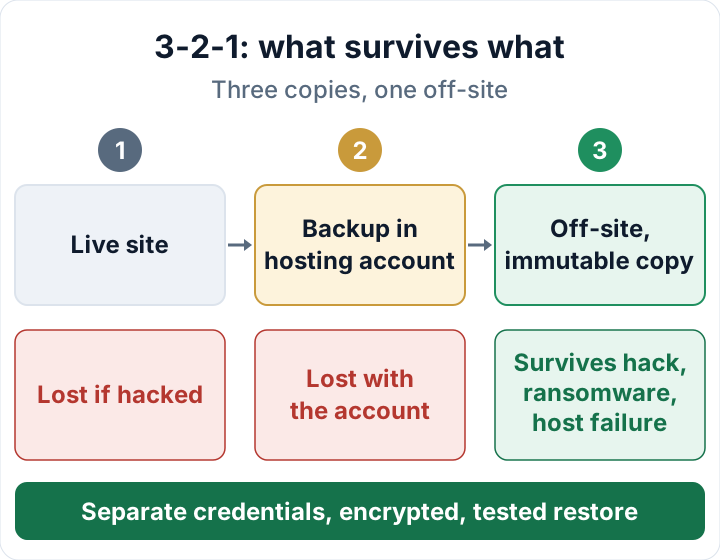
The rule is three copies of your data, on two different types of storage, with one copy off-site. Your live site counts as one copy. A backup in the same hosting account is the second, but it has the same login, the same server and the same provider as the site.
Anyone who can write to your site can usually delete that copy. Ransomware that encrypts the web root encrypts the zip file next to it. A suspended account or a host failure takes both at once. Host snapshots are useful and fast to restore, but they are still a single copy that you don't control.
The third copy is the one that counts. It should go to storage at a different provider, with separate credentials that are not stored on the web server in a form that allows deletion. Two settings make a large difference:
- Versioning or immutability. Many object storage services offer versioning, object lock or a provider-side retention lock. Versioning keeps older copies, but anyone with delete rights can still remove them. A lock in its strictest (compliance) mode stops everyone, including you, from deleting or overwriting a backup until the period ends.
- Write-only credentials for the backup job. If the key on the server can only upload, and versioning or a lock keeps older copies, an attacker who steals it cannot erase or overwrite your history.
How often to back up and how long to keep copies
Base the frequency on how fast your data changes. A brochure site edited once a month is fine with weekly backups. A shop taking orders every day needs database backups at least daily, and often more frequently. Files usually change less often than the database, so they can run on a separate schedule.
The retention period is a trade-off. Compromises are often found weeks after they began. If you only keep seven days of copies, every one of them may already contain the backdoor. On the other hand, old backups keep personal data alive, including accounts that users asked you to delete.
Set a fixed retention window and rotation, for example daily copies for a few weeks plus monthly copies for a limited period. Write the window down. That written schedule also helps with erasure requests: the data disappears from backups when the copies expire, and until then you make sure it is not restored or used. Rewriting archives for every request is rarely practical; check your supervisory authority's guidance on backups.
Backups are personal data: encryption, access and contracts
A WordPress backup holds user accounts, password hashes, customer and order data and form entries. Losing it is just as serious as losing the live database.
- Encrypt in transit and at rest. Encryption is one of the measures named in GDPR Art. 32(1)(a). Keep the key somewhere other than the storage it protects.
- Limit access. Only the people who restore sites should be able to download backups. Remove old shared download links and expired user accounts on the storage.
- Sign contracts. A backup storage provider or an agency that keeps copies is a processor under Art. 28 and needs a data processing agreement.
An unencrypted backup that is lost or publicly reachable can itself be a personal data breach. If that happens, see the 72-hour notification guide.
Run a restore test before you need it
Restore onto a staging site or a local copy, never over the live site. Use the off-site copy, not the convenient local one, because the off-site copy is what you will have after a real incident.
# In an empty web root on staging; WP_VERSION comes from your versions file
wp core download --version="$WP_VERSION" --skip-content
tar -xzf files-2026-10-23.tar.gz
# Edit wp-config.php: staging database credentials, then:
wp db import db-2026-10-23.sql
wp search-replace 'https://www.example.com' 'https://staging.example.com' --skip-columns=guid
wp option update blog_public 0
blog_public 0 only asks search engines to stay away. Put staging behind HTTP authentication as well. Stop it from emailing real customers or calling payment webhooks, and consider define( 'DISABLE_WP_CRON', true ); while you test.
Then check:
- Admin login works
- A form submission goes through
- The most recent order or post is present
- Images and downloads load
- The plugin list and versions match your record
- Total time from start to working site is noted
That time is your real recovery time, which is often longer than people assume. Record the date, which backup you used, the result and any problems you found. A backup that has never been restored proves nothing to you, and nothing to anyone who asks how you meet Art. 32(1)(c) and (d) or the accountability duty in Art. 5(2).
Restoring after a hack: find the last clean point
Don't restore the newest backup blindly. It probably contains the backdoor. The oldest backup may be clean but lack weeks of orders. Before you change anything, keep a copy of the infected state so you can investigate later.
Next, estimate when the compromise started. Look at server and access logs, file modification dates, admin users you don't recognize, and files that differ from an older backup. Then choose a backup from before that date. A file-integrity baseline helps here. The Security Audit & Compliance plugin records one and flags changed files and compromise indicators, which narrows down when things changed. It does not make or restore backups.
A cleaner approach than a full restore:
- Reinstall core, plugins and themes from official sources at known versions.
- Take only uploads and the database from the clean point. Check uploads for PHP files (how to find web shells in uploads).
- Check the database for injected admins (
wp user list --role=administrator) and spam content. - Re-enter or migrate the orders and data created since that point.
A restore does not close the hole. Before the site goes live again, update or remove the vulnerable component and rotate all passwords, keys and salts. Otherwise you will be hacked again through the same route. The full procedure is in our malware removal plan, and verifying core checksums confirms that core is clean.
What GDPR and NIS2 expect from your backups
GDPR Art. 5(1)(f) requires appropriate security, including integrity and confidentiality. Art. 32(1)(c) asks for the ability to restore availability of and access to personal data in a timely manner after an incident, and (d) asks for regular testing of your measures. Losing customer data with no way to restore it can count as an availability breach.
For entities in scope of national law, NIS2 Art. 21(2)(c) names business continuity, including backup management and disaster recovery. Even if NIS2 doesn't apply to you, your NIS2 customers may ask you as a supplier or agency for evidence. Our GDPR Article 32 overview covers the wider picture.
Keep a one-page backup record: what is backed up, where, how often, the retention window, the encryption, who has access, and the date and result of the last restore test. Your next step is to schedule that first restore test this week, using the off-site copy.
FAQ
Is my host's daily backup enough?
Usually not on its own. It is one copy, stored with the same provider, often kept for a short period. Check how long it is retained and add an off-site copy that you control.
Should I back up WordPress core?
Not necessary if you record the core, plugin and theme versions. Reinstalling from WordPress.org also gives you known-good core files.
How do I handle a deletion request when the person's data is in backups?
Delete the data from the live site and rely on your documented retention window for the backups. If you ever restore, make sure the person's data is not put back into the live site.
How often should I test a restore?
Regularly, and always after major changes to your hosting, the site or your backup tool. Pick an interval you will actually keep to and record each test.
This article is general information, not legal advice.
Check your own site
Security Audit & Compliance is the WordPress plugin from secaudit.eu: it scans for malware, hidden spam, changed core files and vulnerable code, and maps its findings to GDPR Art. 32, NIS2 Art. 21 and the OWASP Top 10.
See what the plugin checks