WordPress security monitoring: 10 alerts to set up
WordPress security monitoring for small teams: 10 alerts for admins, files, logins, uptime, expiry, Google, mail and backups, who gets them and how to tune them.
Also in: Deutsch Français Español Italiano Polski Português Türkçe

Many WordPress hacks are not found by the site owner. A customer complains about a strange redirect, the host suspends the account, or Google shows a warning in search results. By then the attacker has often been inside for days or weeks. Good WordPress security monitoring turns that around: ten automated alerts, sent to two people who know what to do with them, so a new admin account, a changed core file or a failed backup is noticed within hours.
This is a playbook for setting up those alerts, not a list of hack symptoms. For the symptoms themselves, see 12 signs your WordPress site has been hacked.
Why WordPress security monitoring matters: most hacks are found late
Speed matters because attackers are fast. Patchstack's State of WordPress Security in 2026 (a vendor report, covering 2025) found a weighted median of 5 hours from disclosure to mass exploitation for heavily exploited vulnerabilities. About half of the high-impact vulnerabilities were exploited within 24 hours. A monthly manual check cannot keep up with that.
Be clear about the limits. Monitoring detects; it does not prevent anything. An alert that lands in an inbox nobody reads has the same value as no alert at all. The ten alerts below only help if someone owns them.
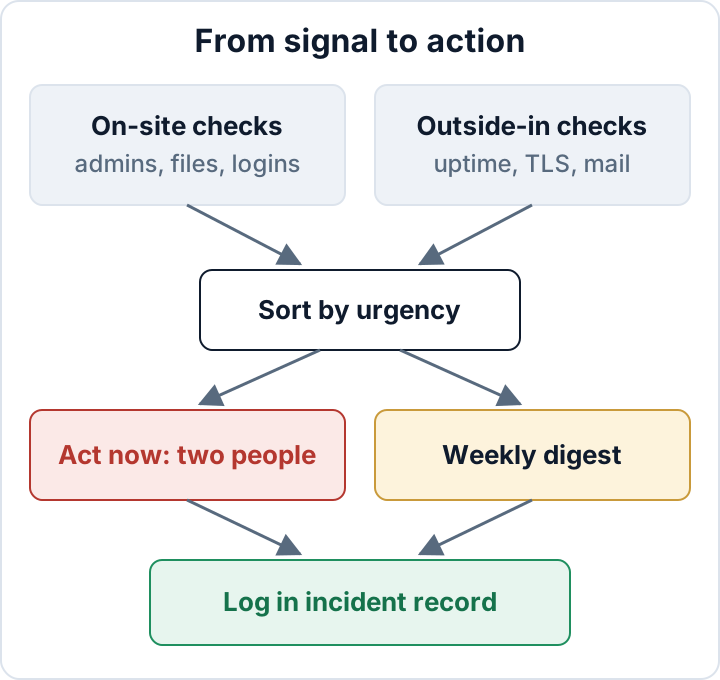
Signals come from three places: the site itself (WordPress users and files), the server (logs, cron, backup jobs) and outside services that look at your site the way visitors and Google do. The outside checks matter most when things go badly wrong, because a compromised server cannot be trusted to report on itself.
Account and file alerts: new admins, changed files, PHP in uploads
These three alerts are high urgency. Each one, when it fires without an explanation, usually means someone has code or admin access they should not have.
Alert 1: a new administrator account. Attackers create admins to keep access after you change passwords. Alert 2: changed core or plugin files. WP-CLI can compare files with the official WordPress.org checksums. **Alert 3: new PHP files in wp-content/uploads.** That folder should hold images and documents, not code.
If you have SSH and WP-CLI, one small script run daily from cron covers all three. Run it as the site's own user, not as root, and send mail to an address that is not hosted on the monitored domain. Cron runs with a minimal PATH, so use the full path to wp (find it with command -v wp) if the commands are not found, and test that the server can send mail at all.
#!/bin/sh
# Daily WordPress checks. Run as the site user, not root.
SITE=/var/www/example.com
STATE="$HOME/.wp-monitor"
TO=alerts@example-ops.net
mkdir -p "$STATE" && cd "$SITE" || exit 1

check() { # $1 = name, list on stdin; alert if it differs from the baseline
  sort > "$STATE/$1.new"
  [ -f "$STATE/$1.txt" ] || cp "$STATE/$1.new" "$STATE/$1.txt"
  cmp -s "$STATE/$1.txt" "$STATE/$1.new" || \
    diff "$STATE/$1.txt" "$STATE/$1.new" | mail -s "ALERT example.com: $1 changed" "$TO"
}

wp user list --role=administrator --field=user_login | check admins
find wp-content/uploads -type f \( -iname '*.php' -o -iname '*.phtml' -o -iname '*.phar' \) | check uploads-php

OUT=$(wp core verify-checksums 2>&1) || echo "$OUT" | mail -s "ALERT example.com: core checksums" "$TO"
OUT=$(wp plugin verify-checksums --all 2>&1) || echo "$OUT" | mail -s "ALERT example.com: plugin checksums" "$TO"
15 3 * * * /home/example/bin/wp-monitor.shThe script does not update the baseline by itself. A changed admin list keeps alerting every day until a person checks it and copies the .new file over the .txt file. That is intentional: an alert that silently accepts the change after one email is easy to miss.
Two caveats. First, wp plugin verify-checksums only works for plugins hosted on WordPress.org. Premium plugins make the command fail, so the script would alert every day. Read the warning once, then add --exclude=slug-one,slug-two for those plugins to the command. Verify WordPress checksums explains how to read modified and extra files. Second, some plugins place harmless index.php files in uploads. The first run records them in the baseline, so only new ones alert.
No SSH? Use a security plugin that reports user changes and file changes, and ask your host what file-change scanning they offer.
Login and traffic alerts: spikes, not single events
Alert 4: a spike in failed logins. Alert 5: a traffic spike. For both, single events are noise. Every public WordPress site sees failed logins on wp-login.php and xmlrpc.php every day, and an email for each one trains you to ignore the alerts.
Alert on rate against a baseline instead. Watch your normal numbers for two weeks, then set a threshold well above them, for example three times your usual hourly average. The source can be a security plugin's login log, your host's panel or the web server access log. Log paths differ by host, so check yours before you count anything.
A traffic-spike alert tells you something unusual is happening: a bot crawling the site, a scraper, a campaign that went viral, or the start of an attack. It does not stop any of it. A plugin running on the server is not DDoS protection; that needs a CDN or edge firewall in front of the site. WordPress brute force protection covers login throttling, XML-RPC and where a plugin's job ends.
Outside-in alerts: uptime, certificates, domains, Google and mail
These five checks run on someone else's infrastructure. That is the point: if the server is compromised, the attacker can delete your cron job or stop your mail, but they cannot stop an outside service from noticing that the site looks wrong.
Alert 6: uptime and content. Use an external uptime monitor that checks the homepage and one important page (checkout, contact form) every few minutes. Add a keyword check: alert when a phrase from your footer disappears, or when words like "casino" or "viagra" appear. That catches defacement and some injected spam, not just outages.
Alert 7: TLS certificate expiry. Even with automatic renewal, renewals fail. Most uptime monitors can warn at 30 and 14 days before expiry.
Alert 8: domain expiry. Set a monitor on the domain's expiry date, and check that the registrar's contact email works. If that address sits on the domain itself, the renewal reminders stop arriving exactly when the domain lapses.
Alert 9: Google Search Console. Security issue and manual action emails only go to verified owners and users of the property. Under Settings > Users and permissions, make sure both people responsible for alerts are listed, not a former agency employee.
Alert 10: outgoing mail and blocklists. A hacked site often sends spam. Ask your host or SMTP provider for a volume alert on outgoing mail, and run a regular blocklist check (for example with Spamhaus lookups) for the sending IP and the domain.
Backup job failures: the alert nobody sets up
Treat this as the eleventh alert, and possibly the most valuable. Many backup tools email on failure, but a job that never starts sends nothing. So alert on two things: an explicit failure, and silence, meaning no success message arrived in the expected window. A heartbeat monitor that expects a ping after each successful job does this well.
Also watch the size. A backup that is suddenly much smaller than usual can mean the database dump failed or a folder was skipped. A successful job is not a restorable backup, so pair these alerts with an occasional restore test.
Who receives the alerts, and how to avoid alert fatigue
Name two people for every urgent alert, for example the owner and the agency's lead developer. One shared inbox that nobody owns does not count. Write down who contacts the host, and send alerts to an address that does not depend on the monitored domain's own mail server.
Then split everything into two tiers:
| Alert | Source | Urgency | Recipient |
|---|---|---|---|
| New admin | Site | Act now | Owner + developer |
| Changed core/plugin files | Server | Act now | Developer + owner |
| PHP in uploads | Server | Act now | Developer + owner |
| Failed-login spike | Site/server | Digest, page if extreme | Developer |
| Traffic spike | Site/CDN | Digest, page if extreme | Developer |
| Site down or content changed | Outside | Act now | Owner + developer |
| TLS expiry | Outside | Digest, act within 14 days | Developer |
| Domain expiry | Outside | Digest, act within 14 days | Owner |
| Search Console issue | Outside | Act now | Owner + developer |
| Mail volume / blocklist | Host/outside | Act now | Developer + host |
| Backup failed or silent | Server | Act now | Developer |
Tune thresholds after the first two weeks, when you know what normal looks like. Send a test alert every quarter to check that both people still receive it. If an alert has fired ten times and nobody acted, change its threshold or delete it.
Monitoring as evidence: GDPR Art. 32 and NIS2 incident handling
Under GDPR Art. 32(1), monitoring supports the ongoing integrity and availability of systems (b), the ability to restore after an incident (c, which is where the backup alert fits) and a process for regularly testing and evaluating your measures (d). Quarterly test alerts are exactly that kind of test.
The Art. 33 deadline of 72 hours runs from when you become aware of a personal data breach. A working alert chain decides how quickly that awareness happens and how fast you can contain the damage. Art. 33(5) requires you to document every breach, even ones you do not report, so keep the alert emails and what you did about them as part of your incident record. The GDPR 72-hour breach notification covers what happens after the alert.
If your company is in scope of NIS2, Art. 21(2)(b) requires incident handling, and Art. 23 requires an early warning for significant incidents within 24 hours. Obligations come from your country's national law, so check your country's national NIS2 law for the details.
The free Security Audit & Compliance plugin from secaudit.eu can take part of the on-site work: it keeps a file integrity baseline and reports changes, checks for hidden admin accounts and verifies core checksums, and can send traffic-spike alerts. It detects and reports; it does not prevent attacks, and the outside-in checks still need an external service.
Your next step this week: set up alerts 1, 2 and 6 and the backup alert, with two named recipients. Add the rest over the following month.
FAQ
Do I need a paid monitoring service, or are free tools and cron enough?
For a small site, cron, WP-CLI, a security plugin and a free external uptime monitor cover most of the ten alerts. Paid services mainly add shorter check intervals, more locations, phone or chat notifications and less maintenance. Pay when the setup keeps breaking or nobody has time to maintain it.
Do alerts help on shared hosting without SSH?
Yes. Use the host's own tools for backups, mail volume and malware scans, a plugin for user and file changes, and outside monitors for uptime, certificates, domains and Search Console. Only the WP-CLI script needs shell access.
How often should file checks run?
Daily is a sensible minimum for most sites. Busy shops or sites with many admins can run the checks every few hours. Avoid scheduling them during your own update window, or every routine update will trigger an alert.
This article is general information, not legal advice.
Check your own site
Security Audit & Compliance is the WordPress plugin from secaudit.eu: it scans for malware, hidden spam, changed core files and vulnerable code, and maps its findings to GDPR Art. 32, NIS2 Art. 21 and the OWASP Top 10.
See what the plugin checks