Locked out of WordPress admin after a hack: get back in
Locked out of WordPress admin after a hack? Regain access via hosting, SFTP and WP-CLI, lock the attacker out and keep the evidence for your GDPR duties.
Also in: Deutsch Français Español Italiano Polski Português Türkçe
If you are locked out of WordPress admin and the password reset email never arrives, an attacker may have changed your password, your email address, or both. Do not start with phpMyAdmin. Start with the access you still control, which is usually your hosting account, and work down to WordPress from there.
This guide walks through that order. It also covers how to make the change without destroying the evidence you will need afterwards.
Locked out of WordPress admin: hack or harmless lockout?
Spend two minutes on triage first. Many lockouts have nothing to do with an attacker.
The common harmless causes are a reset email that sits in spam or was never sent because the site cannot deliver mail, a lost phone with your authenticator app (see recovering two-factor access), or a security plugin that has temporarily blocked your IP after too many failed logins. Try a different network, and check your spam folder for the reset email.
These signs point to an attack:
- The reset email goes nowhere, even though mail from the site worked last week.
- WordPress says your username or email address is not registered, not just that the password is wrong.
- The site is defaced, redirects visitors elsewhere, or shows content you did not publish.
- Your host or a colleague reports new administrator accounts.
If it looks like an attack, follow one rule from now on: change nothing you cannot undo, and take a copy before you fix anything.
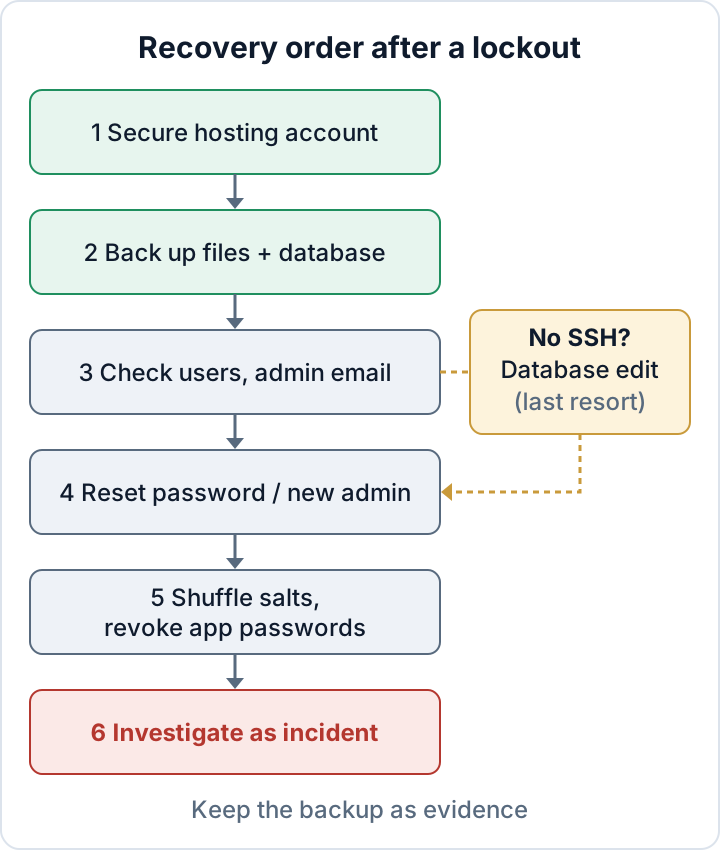
Start with the access you still have: hosting panel and SFTP
Your hosting account controls the files, the database and often the email. If the attacker got in there, any WordPress fix is temporary. Log in to the hosting panel, change its password, and turn on two-factor authentication if the host offers it. If the reset email for the hosting account also fails, your mailbox may be compromised. Secure the email account before anything else.
Then look at what the panel gives you. You need at least one of these: SSH access (ideally with WP-CLI installed), SFTP, a file manager, or a database tool such as phpMyAdmin.
Before you change a single setting, take a full backup or snapshot of the files and the database. This is your rollback point if a fix goes wrong. It is also evidence: it shows the state of the site when you found the problem, including the rogue accounts and changed files. Download a copy and store it outside the hosting account.
Find out what the attacker changed with WP-CLI
With SSH, WP-CLI is the fastest and safest tool. Run it as the user that owns the WordPress files, not as root, from the WordPress directory. Our WP-CLI security cheat sheet covers the setup. Start by reading, not writing:
wp user list --role=administrator --fields=ID,user_login,user_email,user_registered
wp user list --fields=ID,user_login,user_email,roles,user_registered --orderby=registered --order=DESC
The second command lists every user, newest first. Accounts created in the last days with odd names or free-mail addresses deserve a close look. Then check the site-wide settings:
wp option get admin_email
wp option get new_admin_email
wp option get siteurl
wp option get home
new_admin_email holds a pending change of the site admin address that has not been confirmed yet. If it shows an address you do not know, someone tried to take over the notification channel. An unknown domain in siteurl or home means the site is sending visitors and logins elsewhere.
Write down the findings with the date and time: user IDs, logins, email addresses, registration dates. These notes are part of your incident record.
Reset the password or create a fresh administrator safely
If your account still exists, restore your email address first. --skip-email stops WordPress from sending a change notice to the address the attacker set:
wp user update 1 --user_email=you@example.com --skip-emailReplace 1 with your own user ID from the list. For the password, avoid --user_pass=... on the command line. Anything you type there lands in your shell history file and stays readable by anyone who later gets into the account. Let WP-CLI ask for it instead:
wp user update 1 --prompt=user_passWP-CLI reads the value from input, so it never appears in the history. Input may still be shown on screen, so mind who is watching. If you must type a password on the command line, two alternatives work in bash: start the command with a space while HISTCONTROL is set to ignorespace or ignoreboth, or remove the entry afterwards with history -d <number> before you log out.
If your account was deleted or downgraded, create a new administrator:
wp user create recovery-admin you@example.com --role=administratorUse an email address that no other account on the site uses, or WordPress refuses to create the user. Without --user_pass, WP-CLI generates a strong password and prints it once. Log in, change it, and set up two-factor authentication immediately.
Do not delete the attacker's accounts yet. Deleting them removes evidence and may also delete or reassign their content. Downgrade them instead (wp user set-role 7 subscriber), give them a random password nobody knows (wp user reset-password 7 --skip-email), and keep a note of their ID, login, email and registration date. The full clean-up of rogue and hidden admins is covered in WordPress user roles security.
End every session: shuffle salts, revoke application passwords
A new password does not automatically throw the attacker out. Their login cookie can stay valid. Generate new security keys and salts:
wp config shuffle-saltsThis invalidates every login cookie, including yours, so everyone must log in again. See the WP-CLI documentation for shuffle-salts.
Application Passwords, which have existed in core since WordPress 5.6, are different. They survive both salt changes and password changes. An attacker who created one keeps API access. List them for every administrator, including your own account and the attacker accounts you downgraded:
wp user application-password list 1
wp user application-password delete 1 --all
Record what you find before deleting. A name, creation date and last-used date are useful evidence (command reference).
Then rotate the secrets the attacker could have read: the database password (change it in the hosting panel and in wp-config.php at the same time), SMTP credentials, payment and API keys stored in plugin settings, and SFTP passwords.
No SSH? Editing the database is the last resort
Without SSH you can use phpMyAdmin or your host's database tool. Export the full database first. A wrong click here can break the site or the login for everyone.
Check the table prefix in wp-config.php ($table_prefix). It is not always wp_. In the users table (wp_users by default), find your row by user_login and correct user_email. In the options table, correct the admin_email row. For the password, edit user_pass and choose the MD5 function in phpMyAdmin with a temporary password. WordPress accepts this old hash format for compatibility and replaces it with a strong hash when you log in. Change the password in the dashboard straight away.
If this feels risky, ask your hosting company or your developer to do it. Many hosts can reset an admin email or password for a verified account owner.
Back in: treat the lockout as a security incident
Getting your login back is where the incident starts, not where it ends. The attacker got in somehow, and the hole is probably still open.
Preserve the logs before they rotate away: web server access and error logs, the host's panel and FTP logs, and any security plugin logs. Then look for the entry point. Typical causes are a vulnerable plugin, a reused or leaked password, or a compromised email account used for the reset. Check for backdoors before you trust the site again. Attackers who had admin access often leave web shells, extra plugins or scheduled tasks behind. Follow our WordPress malware removal plan, and if the problem returns, see finding the backdoor.
There is also a GDPR question. An administrator can read user accounts, contact-form entries and order data. An attacker with that access is usually a personal data breach. Under GDPR Art. 33(5) you must document every breach, even ones you do not notify. Art. 33 requires notifying the supervisory authority without undue delay and, where feasible, within 72 hours of becoming aware, unless the breach is unlikely to result in a risk. Our guide to the 72-hour breach notification explains how to assess that.
Once you are back in, the free Security Audit & Compliance plugin from secaudit.eu can help with the next step. It checks for hidden admins, suspicious cron jobs and other compromise indicators, verifies core checksums and flags changed files. It detects and reports, and it does not replace a proper cleanup → secaudit.eu.
FAQ
Should I just restore a backup?
Not as the first step. A restore removes the evidence and leaves the entry point open, so the attacker can come back. Copy the current state, find the cause, then restore from a backup taken before the compromise if that is the cleanest route.
Why doesn't the reset email arrive?
Either the site cannot send mail (no working SMTP setup, or messages land in spam), or the attacker changed your account's email address. wp user list shows which address is stored.
Does a new password log the attacker out?
Not reliably. Shuffle the salts to end all cookie sessions and revoke Application Passwords, which survive password changes.
Can my host restore access for me?
Often yes, after verifying that you own the account. Ask them to also keep the logs for the incident period.
This article is general information, not legal advice.
Check your own site
Security Audit & Compliance is the WordPress plugin from secaudit.eu: it scans for malware, hidden spam, changed core files and vulnerable code, and maps its findings to GDPR Art. 32, NIS2 Art. 21 and the OWASP Top 10.
See what the plugin checks