WooCommerce security: protect orders and customer data
WooCommerce security for EU shops: Shop Manager roles, 2FA, REST API keys, webhooks, data retention, hosted payment pages and fast extension updates.
Also in: Deutsch Français Español Italiano Polski Português Türkçe
Good WooCommerce security means controlling every path that customer data can take through the shop. That includes the people who can open orders, the integrations that can read or write them, how long the data stays, and where card numbers go. Generic WordPress hardening covers the basics. This article covers the settings that only a shop has, in the order we would check them.
WooCommerce security starts with the data your shop holds
A shop is a database of personal data with a storefront attached. It holds names, billing and shipping addresses, email addresses, phone numbers and order histories. Some of it is sensitive in context, such as what someone bought and where they live.
That has a legal consequence. If an attacker reads, changes or deletes that data, it is usually a personal data breach under the GDPR. This applies whether the breach affects confidentiality, integrity or availability. Article 32(1) requires appropriate technical and organisational measures. Article 33 requires you to notify the supervisory authority without undue delay and, where feasible, within 72 hours of becoming aware of a breach. Article 34 adds a duty to inform customers when the risk to them is high. The process is covered in our guide to the 72-hour breach notification.
Every measure below either narrows who can reach that data or shrinks how much of it there is to lose.
Shop Manager vs Administrator: give staff the smaller role
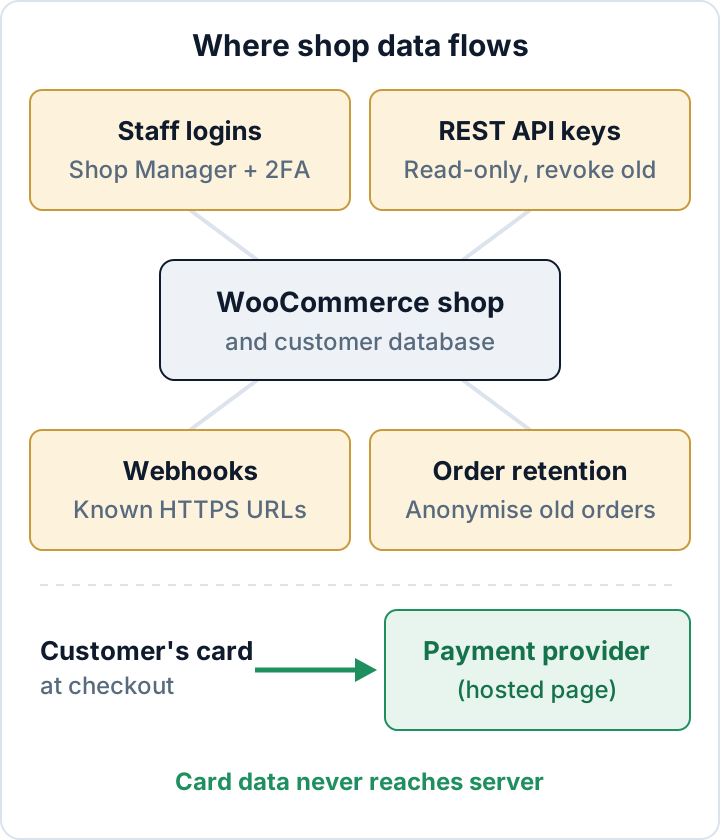
WooCommerce adds a Shop Manager role, and most staff should have it instead of Administrator. A Shop Manager can:
- manage orders, products and coupons
- view and edit customer accounts
- see reports
- change WooCommerce settings
A Shop Manager cannot:
- install or delete plugins
- edit themes
- create or manage administrators
This matters because an Administrator account can turn a stolen password into code running on your server. A Shop Manager account generally cannot do that.
Give Shop Manager to warehouse, fulfilment and customer-service staff. Limit Administrator to one or two people who actually maintain the site. If an agency needs admin access, give each person their own named account and remove it when the work ends.
Be honest about the limit. A Shop Manager still sees every order and every customer address. The smaller role protects the site, but it does not protect the data from a misused Shop Manager login. For the cleanup and the regular review, see WordPress user roles security.
Two-factor login for everyone who can see orders
Two-factor authentication belongs on every account that can open the orders screen, not only on admin accounts. A single Shop Manager login is enough to read or export your whole customer list. Phishing a customer-service employee is often easier than phishing the site owner.
WordPress core has no two-factor login, so you need a plugin or a login provider that adds it. The strength of the second factor matters:
- Passkeys and hardware security keys are phishing-resistant and the best choice.
- TOTP authenticator apps are a solid default. They can still be phished in real time.
- SMS codes are the weakest option because of SIM swapping and interception.
Customer accounts are a separate decision. Offering 2FA to customers is good practice, but forcing it adds friction at checkout. Staff accounts come first. Setup, rollout and lost-phone recovery are covered in two-factor authentication for WordPress.
WooCommerce REST API keys: read, write and revoke
Accounting tools, ERP connectors, shipping software and marketplaces often connect through WooCommerce REST API keys. You manage them under WooCommerce > Settings > Advanced > REST API.
Each key is tied to a WordPress user and has one of three permissions: Read, Write or Read/Write. The key can never do more than its user is allowed to do. Treat these keys like passwords that never expire.
- One key per integration. You can then revoke one tool without breaking the others, and you can see which tool used which key.
- Least privilege. A reporting or bookkeeping tool needs Read only. Give Write only to tools that must create or update orders or stock.
- Use a low-privilege user. Do not tie keys to an Administrator if a Shop Manager or a dedicated integration user will do.
- Check the last-access column. A key that has not been used for months is a candidate for revocation.
- Revoke and reissue when people or tools leave. When an agency relationship ends or a tool is replaced, revoke its keys the same day.
- Store keys safely. Put them in the receiving tool's credential settings. Never send them by email, chat or support ticket. WooCommerce shows the consumer secret only once, so a key someone wants "sent over again" should be a new key.
WordPress Application Passwords are a separate credential and do not appear on this screen. Each user can create them on their profile, and they also give API access. Review them together with your user accounts, as described in the user roles article.
Webhooks: know where your order data is sent
Webhooks live under WooCommerce > Settings > Advanced > Webhooks. Every active webhook sends a copy of order, customer or product data to an external URL whenever its trigger fires. In practice, a webhook is a standing data transfer.
Review the list and check each delivery URL:
- Do you recognise the service?
- Do you still use it?
- Does the URL use HTTPS?
Delete webhooks for tools you no longer use; pausing them only postpones the decision. Do not accept plain http:// endpoints, because order data would travel unencrypted.
Each webhook has a secret (WooCommerce generates one if you leave the field empty). WooCommerce uses it to sign every payload, and the signature is sent in a request header. The receiving system should verify that signature before it trusts the data. Otherwise anyone who learns the endpoint URL can send it fake orders. If you or your developer built the receiver, confirm that this check exists.
The service that receives the data usually acts as your processor, which means you need a data processing agreement under GDPR Art. 28. Our article on data processing agreements explains what goes into one.
One more reason to check this screen regularly: a webhook added by an attacker after a compromise sends every new order to their server. It does this quietly, and it continues even after the obvious malware has been cleaned up.
Order and log retention: keep less, lose less
Data you no longer hold cannot leak. WooCommerce has built-in retention controls under WooCommerce > Settings > Accounts & Privacy, in the personal data retention section. There you can choose how long to keep:
- inactive customer accounts
- pending, failed and cancelled orders
- completed orders
When the period ends, WooCommerce anonymises or removes the data.
Do not set these periods blindly. Tax and accounting law in most EU countries requires you to keep invoices and order records for several years. Agree the periods with your accountant, then set completed-order retention to match. Failed and cancelled orders and inactive accounts can usually go much sooner.
On the same screen, decide whether customers can check out as guests and when accounts are created. Every account you do not create is one less password to reuse and one less profile to protect.
Logs need the same attention. Under WooCommerce > Status > Logs, payment gateways and extensions write log files that can contain request data, including names, emails and addresses. Recent WooCommerce versions let you set a retention period on that screen; use a short one. Turn off debug logging in gateways and extensions once the problem it was meant to diagnose is solved.
Finally, look for old order exports. CSV files from export plugins or reports end up on laptops, in shared drives and sometimes in the uploads folder. On the server, list them with:
find wp-content/uploads -type f -name "*.csv" -lsDownload anything you genuinely need to a protected location, then delete the rest from the web root.
Keep card data off your server: hosted payment pages and fields
The most effective architectural choice for a shop is to keep card numbers off WordPress entirely. You can do this with the payment provider's hosted payment page or its embedded hosted fields. In both cases the customer types the card number into a page or frame served by the provider. The number goes straight to the provider, and your shop only receives a confirmation and a reference.
If the shop is then hacked, the database the attacker reaches contains no card numbers. The breach is still serious, but it is smaller.
This does not make the checkout immune. A compromised site can inject a skimming script or replace the payment step with a fake form that looks like the real one. Hosted fields reduce that risk but do not remove it. Three habits help:
- Know which scripts load on your checkout page, and notice when a new one appears.
- Use a Content-Security-Policy that limits where scripts can load from. Introduce it carefully, because a strict policy can break checkout (see our security headers guide).
- Monitor file integrity so that a changed template or a new file is noticed quickly.
Update WooCommerce extensions fast, and test checkout
Speed matters more for shops than for most sites. According to Patchstack's State of WordPress Security in 2026 (a vendor report, with data for 2025):
- 11,334 new vulnerabilities were found in the WordPress ecosystem.
- 91 % of them were in plugins.
- For heavily exploited flaws, the weighted median time to mass exploitation was 5 hours.
- Broken access control was the most exploited category. That is exactly the kind of flaw that lets a customer or anonymous visitor reach order data.
Shops make updates harder in two ways. First, many paid extensions update through a vendor licence or a connected marketplace account rather than WordPress.org. Second, an expired licence quietly stops updates.
Keep an inventory of every extension, with where its updates come from and when its licence expires. Turn on auto-updates for low-risk extensions. For payment gateways and checkout extensions, run a short staging test before updating the live shop: place a test order, pay, refund. Do this within a day of a security release, not at the end of the month. Delete gateways and extensions you no longer use. A deactivated plugin is still code on your server. More on this process in handling vulnerable plugins.
The free Security Audit & Compliance plugin from secaudit.eu flags outdated plugins, themes and core. If you turn on its vulnerability checks, it also matches your installed versions against known CVEs on the site itself, so your plugin list never leaves the site. → secaudit.eu
FAQ
Does a Shop Manager really need 2FA?
Yes. A Shop Manager can read and export every customer record, so a stolen Shop Manager password can expose your whole customer list. Treat these accounts like admin accounts.
Can I delete or anonymise old orders if I have accounting duties?
Yes, once the legal retention period has passed. Keep what tax and accounting law requires for as long as it requires, and set WooCommerce retention to match. Data with no such duty, such as failed orders and inactive accounts, can go earlier.
If I use a hosted payment page, is a hack still a data breach?
Usually yes. Names, addresses, emails and order histories are still personal data in your database. The hosted page keeps card numbers out of that breach. It does not remove the duty to assess the breach and, where required, notify the authority.
What should I do with a REST API key I can't identify?
Note its description, user, permission and last access, then revoke it. If a legitimate tool stops working, issue that tool a new key with the minimum permission it needs. An unknown key with Write access and recent activity is a reason to check the site for other signs of compromise.
This article is general information, not legal advice.
Check your own site
Security Audit & Compliance is the WordPress plugin from secaudit.eu: it scans for malware, hidden spam, changed core files and vulnerable code, and maps its findings to GDPR Art. 32, NIS2 Art. 21 and the OWASP Top 10.
See what the plugin checks